
Most site owners assume a robots.txt block is rare and dramatic. It isn’t. It’s one of the most common, most self-inflicted indexing problems on the web, and most of the time the site owner caused it without realizing it.
If Google Search Console is telling you Googlebot blocked by robots.txt, the fix is usually a two-line change. The hard part is figuring out which line is doing the damage and why it got there in the first place.
What robots.txt actually controls (and what it doesn’t)
A robots.txt file is a plain text file at your domain root, like example.com/robots.txt, that tells crawlers which paths they’re allowed to request. It’s a crawling instruction, not a security tool and not an indexing switch.
That distinction trips people up constantly. Blocking a URL in robots.txt stops Googlebot from fetching the page’s content. It does not stop Google from indexing the URL if other pages link to it. You can end up with a page sitting in the index with no title, no description, just a bare URL, because Google knows it exists but was never allowed to crawl it. Google Search Central documents this directly: robots.txt controls crawl access, not search visibility.
The file uses a small set of directives: User-agent, Disallow, Allow, and optionally Sitemap. Each works per line, and order matters more than people think. A basic working file looks like this:
User-agent: *
Disallow: /wp-admin/
Allow: /wp-admin/admin-ajax.php
Sitemap: https://example.com/sitemap.xml
This blocks crawlers from the admin area but carves out an exception for the AJAX endpoint WordPress needs for front-end functionality. That’s the pattern behind most legitimate robots.txt files: broad blocks on junk directories, narrow exceptions where something needed still lives inside them.
How to confirm Googlebot is actually blocked
Don’t guess. Check it. Open Google Search Console and go to Pages under the Indexing section. Look for the status “Blocked by robots.txt” in the table of why pages aren’t indexed.
Click into that status and Search Console will list the affected URLs. From there, grab one URL and run it through the URL Inspection tool at the top of the property. It will show you exactly which rule in your robots.txt is doing the blocking, line by line.
There’s also a standalone robots.txt Tester built into the old Search Console interface, still reachable from some properties, and a simpler live checker: just visit yourdomain.com/robots.txt in a browser and read it yourself. If you don’t recognize a Disallow line, someone or something added it, and that’s your starting point.
A few things to check in that moment:
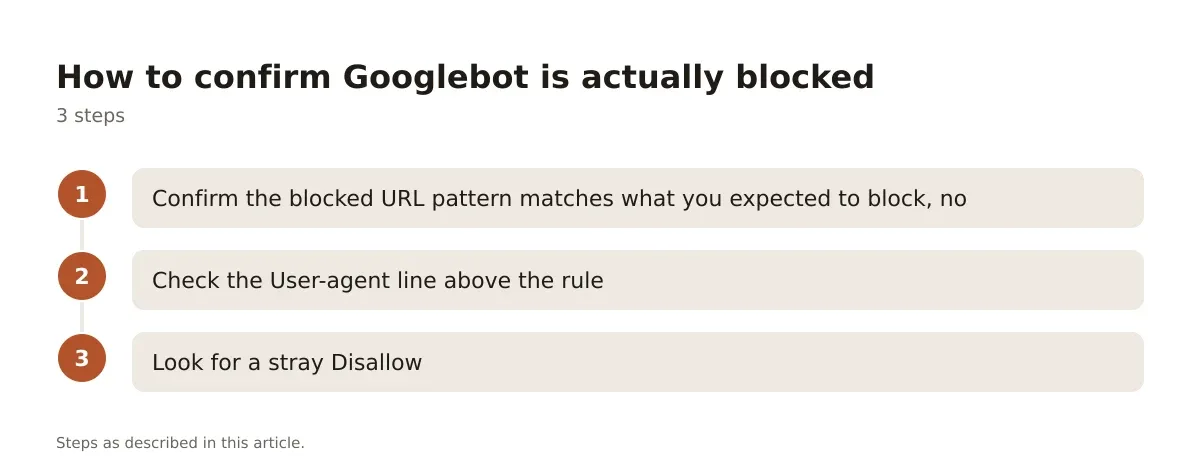
- Confirm the blocked URL pattern matches what you expected to block, not a broader folder that caught other pages by accident.
- Check the
User-agentline above the rule. A rule underUser-agent: *hits every crawler, but a rule scoped toUser-agent: Googlebot-Imageonly affects image crawling, not the main bot. - Look for a stray
Disallow: /sitting alone. That one line blocks the entire site, and it’s the single most common accidental robots.txt disaster.
If you manage the site through WordPress, also check Settings > Reading for the “Discourage search engines from indexing this site” checkbox. It doesn’t edit robots.txt directly in older setups, but on sites using SEO plugins it can trigger a dynamically generated Disallow: / that overrides whatever you wrote manually.
⚠️ Warning: Never leave “Discourage search engines from indexing this site” checked on a live site. It’s meant for staging environments only, and it quietly blocks the entire domain.
The five most common causes of a robots.txt block
Once you’ve confirmed the block exists, the cause is almost always one of these.
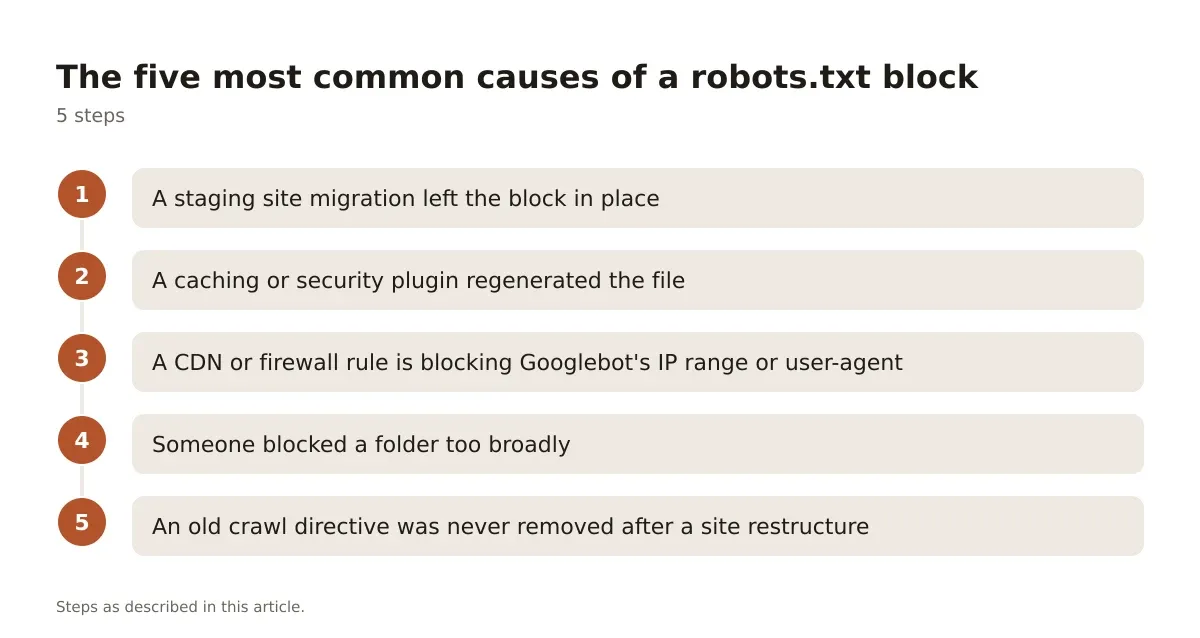
- A staging site migration left the block in place. Dev environments commonly ship with
Disallow: /to stop search engines from indexing a half-finished build. When the site goes live, that line sometimes rides along in the final deploy. - A caching or security plugin regenerated the file. Some WordPress plugins write their own robots.txt rules on activation, silently overwriting a hand-edited version.
- A CDN or firewall rule is blocking Googlebot’s IP range or user-agent string at the server level, which then shows up in Search Console reporting as a robots.txt-style block even though the real issue is server access.
- Someone blocked a folder too broadly. A rule meant to hide
/wp-content/uploads/private/was written asDisallow: /wp-content/, taking out every theme asset, image, and CSS file along with it. - An old crawl directive was never removed after a site restructure. Pages that moved to new URLs can still be governed by Disallow rules written for the old path structure, especially after CMS migrations.
Each of these has a different fix, which is why checking the actual file content before editing matters more than jumping straight to a generic solution. For a deeper walkthrough of the Search Console side of this specific error, see our guide on how to fix the blocked by robots.txt error in Search Console.
Fixing a full-site block versus a single-directory block
A full-site block, that lone Disallow: / under User-agent: *, needs immediate attention. Every page on the domain is invisible to crawling until it’s removed. The fix is deleting or editing that line, saving the file, and re-testing through URL Inspection to confirm the status flips to “crawlable.”
A single-directory block is lower stakes but still needs precision. Say you want to keep /cart/ and /checkout/ out of the index because they’re duplicate, user-specific, or low-value pages. The correct line is narrow:
User-agent: *
Disallow: /cart/
Disallow: /checkout/
That’s different from blocking /c as a prefix match, which some crawlers interpret loosely and could catch unintended URLs starting with those letters. Robots.txt pattern matching supports wildcards (*) and end-of-string anchors ($), and getting those wrong is how a narrow intention becomes a wide accident.
Disallow: /checkout$That line blocks only the exact URL /checkout, not /checkout/step-2 or /checkout-confirmation. The dollar sign anchors the match to the end of the string, which is useful when you want surgical precision instead of a folder-wide block.
After any edit, Google doesn’t re-read your robots.txt instantly. It caches the file and typically refetches it roughly once a day, though heavily crawled sites get checked more often. Use the URL Inspection tool’s “Request Indexing” option to nudge a recrawl, but understand that robots.txt caching means changes aren’t always instant.
Why “Indexed, though blocked by robots.txt” is a different problem
This status confuses more people than the plain “blocked” one. It means Google has a URL in its index, probably because other pages or sites link to it, but has never been allowed to actually crawl the page’s content.
You’ll see this most on paginated archives, tag pages, filtered product URLs in ecommerce catalogs, and old blog categories that outlived their usefulness but kept earning backlinks. The index entry persists with a thin, incomplete snippet because Google is working from link context and URL structure alone, not the page itself.
The fix depends on intent. If you actually want the page out of the index entirely, robots.txt is the wrong tool. Remove the Disallow rule, let Googlebot crawl the page, and add a noindex meta tag instead. Robots.txt blocking plus noindex together is a contradiction: Google can’t read the noindex tag if it’s never allowed to fetch the page in the first place.
If you want the page indexed properly, remove the block and verify through URL Inspection that the live test now returns a clean fetch. For sites where this keeps recurring across different page types, it’s usually worth a full audit rather than chasing it URL by URL. Our guide on fixing why a website isn’t showing in Google Search covers the broader diagnostic path when indexing issues go beyond a single blocked folder.
Setting up robots.txt correctly on WordPress
WordPress generates a virtual robots.txt by default if no physical file exists at the root, and it’s usually harmless: a few lines blocking /wp-admin/ with an exception for admin-ajax.php. Problems start when SEO plugins, caching plugins, or manual edits start competing for control of the file.
If you’re running Yoast SEO or Rank Math, both let you edit robots.txt directly from their respective settings panels, which is safer than FTP-editing a physical file because the plugin validates basic syntax before saving. Go to the plugin’s tools section, find the robots.txt editor, and make changes there rather than maintaining two competing files.
A reasonable baseline for most WordPress sites:
User-agent: *
Disallow: /wp-admin/
Disallow: /wp-includes/
Allow: /wp-admin/admin-ajax.php
Sitemap: https://example.com/sitemap_index.xml
Note the sitemap line at the bottom. It’s not required for robots.txt to function, but it gives crawlers an immediate pointer to your full URL list without waiting for discovery through links alone. For sites with multiple sitemaps, like separate ones for posts, pages, and products, point this line at the sitemap index file rather than listing each one individually. We go deeper on this in our piece on why the robots.txt sitemap line matters for indexing speed, and if you’re setting WordPress up from scratch, the step-by-step robots.txt setup guide for WordPress walks through plugin-specific paths in more detail.
Avoid blocking /wp-content/plugins/ or /wp-content/themes/ wholesale. Some of those directories contain CSS and JavaScript files Googlebot needs to render the page properly for mobile-friendliness and layout evaluation. Blocking them doesn’t just hide irrelevant files, it can make Google see a broken, unstyled version of your pages during rendering.
Validating changes before they go live
Editing robots.txt directly on a production site without checking syntax first is how full-site blocks happen in the first place. Google’s documentation recommends testing changes before publishing them, and there are a few practical ways to do that.
- Use the live URL Inspection tool in Search Console on a handful of representative URLs, including at least one you want blocked and one you want crawlable, to confirm the rule set behaves as intended.
- Check robots.txt syntax with a dedicated robots.txt validator before saving, since a misplaced wildcard or missing colon can silently break an entire rule block without throwing an obvious error.
- Review the file manually for duplicate
User-agentblocks, which some plugins create when they append new rules instead of merging them into an existing group, leading to rules that contradict each other. - Re-check the file a few days after any plugin update, since updates occasionally reset custom robots.txt edits back to plugin defaults.
None of these steps take more than a few minutes, and skipping them is the difference between a clean fix and a second incident a month later.
Does blocking a page in robots.txt remove it from Google’s index?
No. Blocking stops crawling, not indexing. A linked URL can still appear in search results without a snippet if Google already knows about it through other signals. To remove a page from the index, let Googlebot crawl it and use a noindex tag, or request removal through Search Console’s Removals tool for a temporary hide.
Getting robots.txt right for the long term
The pattern behind most robots.txt disasters is the same: a rule gets written for one purpose, usually during development or a plugin install, and nobody circles back to confirm it still makes sense once the site is live and growing. The fix isn’t complicated technically. It’s a discipline problem.
Check your robots.txt file the way you’d check any other piece of production code: after migrations, after plugin updates, and any time Search Console flags a sudden drop in indexed pages. The file is short enough to read in full in under a minute, and reading it beats guessing every time.
Treat robots.txt as a crawling budget tool, not a privacy tool and not an indexing switch. Use noindex for pages you want out of search results, use Disallow for paths you don’t want crawled at all, and never assume the two do the same job.
Frequently asked questions
Why does Google Search Console say Googlebot is blocked by robots.txt?
This status means a rule in your robots.txt file is disallowing the crawler from fetching that specific URL. Check the file directly at yourdomain.com/robots.txt and compare it against the blocked URL pattern shown in the Pages report, then use URL Inspection to confirm which exact line is responsible.
Can I just delete my robots.txt file to fix the block?
You can, and Googlebot will treat a missing file as full crawl permission, but this isn’t a real fix. You lose control over crawl budget for low-value paths like admin folders, internal search results, or filtered URL parameters, which can waste crawling resources on pages that never needed to be indexed.
How long does it take for Google to recrawl after I fix robots.txt?
Google typically refetches robots.txt roughly once a day, though this varies by site and crawl frequency. Use the Request Indexing option in URL Inspection to speed up a recheck on a specific URL, but a full site-wide recrawl of previously blocked pages can take longer depending on how often Google already visits your site.
Is blocking a page in robots.txt the same as using a noindex tag?
No, and conflating the two causes most of the “indexed though blocked” problems people see in Search Console. Robots.txt stops crawling; noindex stops indexing but requires Google to crawl the page first to see the tag. If you want a page genuinely out of search results, allow crawling and use noindex instead of a Disallow rule.
What’s the safest way to test a robots.txt change before publishing it?
Use a robots.txt validator to check syntax, then run the proposed file through the live URL Inspection tool against a few real URLs, including both pages you want blocked and pages you want crawlable. Confirm the results match your intent before replacing the live file, since a single misplaced wildcard can block far more than planned.




Leave a Reply