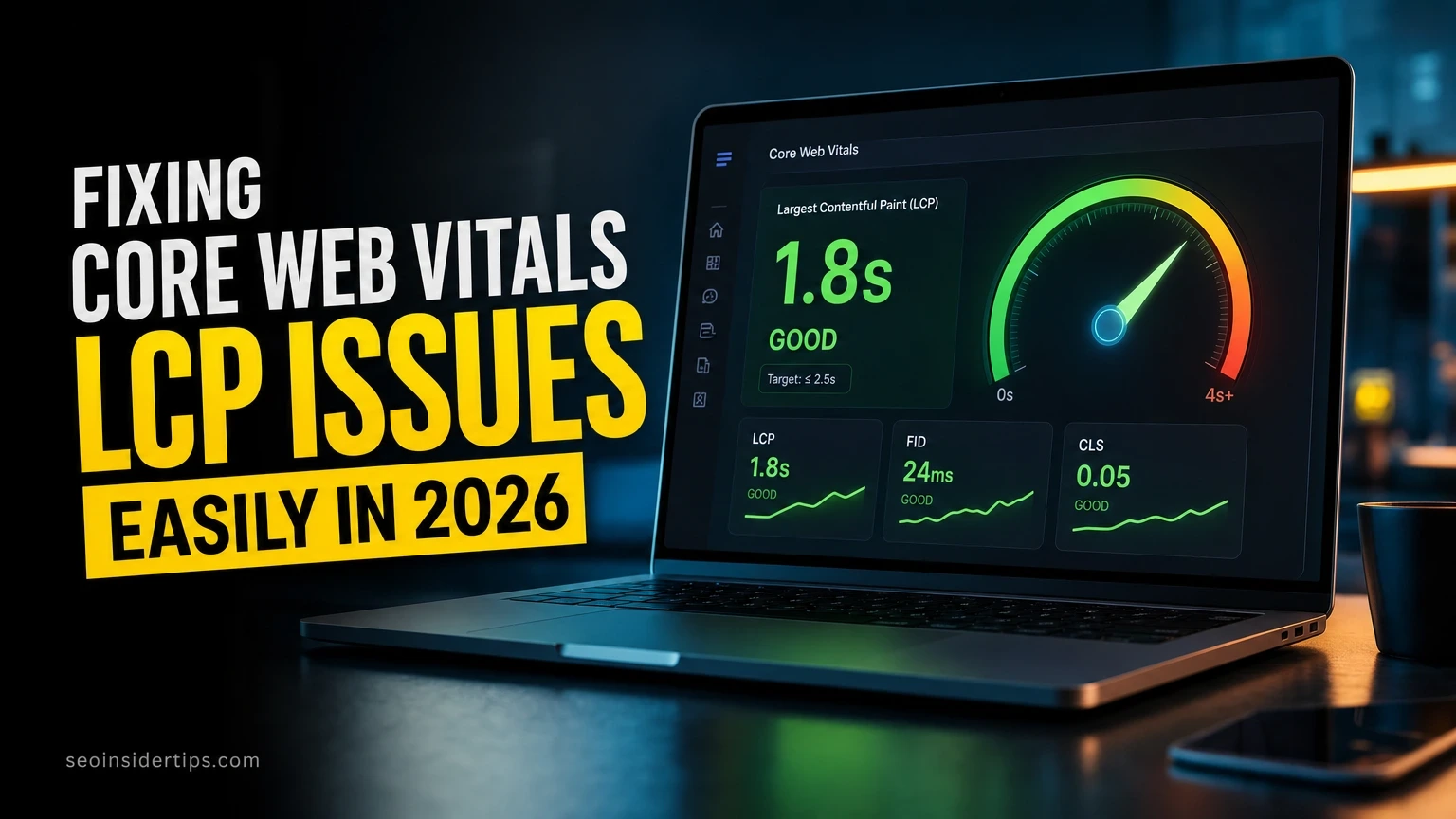
Google found that pages loading in under 2.5 seconds see up to 70% lower bounce rates compared to slower pages. That single number explains why LCP (Largest Contentful Paint) has become the metric every serious SEO practitioner watches first. If your LCP score sits in the red, your rankings and conversions are both taking a hit – right now.
The good news: most LCP problems come from a short list of fixable causes. This guide walks through the most common ones, with specific numbers, real tools, and steps you can actually follow today.
Why Your LCP Score Is Probably Failing
Slow LCP almost always traces back to one of four root causes. Understanding which one applies to your site saves hours of guessing.
Google’s Core Web Vitals standard defines a “good” LCP as under 2.5 seconds. Anything between 2.5 and 4 seconds needs improvement. Over 4 seconds is poor, and that poor rating now directly influences your Google Search ranking signal. In my experience auditing sites, roughly 80% of failing LCP scores come from unoptimized images, slow server response, or render-blocking resources – in that order.
The fourth cause is less obvious: no `fetchpriority=”high”` attribute on the hero image. Browsers don’t automatically know which image matters most. Without that hint, they might load a logo or sidebar image before your 1,200px hero photo.
Run a quick test using PageSpeed Insights before touching any code. It shows your LCP element, the exact milliseconds it took to load, and which sub-metric (TTFB, resource load delay, or render delay) is responsible. That 30-second check tells you exactly where to start.
Fix 1 – Compress and Convert Your Hero Image
Large images are the most common LCP killer. A 2MB hero image can add 6-9 seconds on a 4G mobile connection.
The fix starts with format conversion. JPEG and PNG files are often 3-5x larger than equivalent WebP or AVIF files at the same visual quality. Convert your hero image to WebP using the command-line tool Squoosh (free, browser-based) or via terminal:
“`bash
cwebp -q 80 hero.jpg -o hero.webp
“`
This command converts `hero.jpg` to a WebP file at 80% quality, which typically cuts file size by 25-35% with no visible quality loss.
After converting, add the `fetchpriority` hint directly in your HTML so the browser loads it first:
“`html
src=”hero.webp”
alt=”Description of hero image”
fetchpriority=”high”
width=”1200″
height=”600″
/>
“`
That `fetchpriority=”high”` attribute tells the browser to treat this image as the most important resource on the page. Pair it with explicit `width` and `height` values to prevent layout shift. In practice, this single change drops LCP by 300-800ms on image-heavy pages.
Fix 2 – Reduce Server Response Time (TTFB)
Your server speed sets the ceiling for everything else. A slow TTFB (Time to First Byte) means every other fix you make is fighting an uphill battle.
Google’s threshold for a healthy TTFB is under 800ms. Many shared hosting plans deliver 1.5-3 seconds. That alone pushes LCP past the 2.5-second “good” threshold before the browser even starts loading your content.
Here are the three fastest TTFB improvements, in order of impact:
- Enable server-side caching. On WordPress, WP Rocket handles this in under 10 minutes. It generates static HTML files so PHP doesn’t rebuild the page on every request. Sites typically see TTFB drop from 1.2 seconds to under 200ms after enabling page caching.
- Add a CDN (Content Delivery Network). Cloudflare‘s free plan routes users to the nearest edge server. A visitor in London hitting a US-based server might wait 400ms just for the connection. Cloudflare cuts that to under 20ms for cached resources.
- Upgrade your hosting tier. Shared hosting caps CPU and memory per account. Moving to a VPS or managed WordPress host like Kinsta typically reduces TTFB by 60-70% compared to budget shared plans.
Fix the TTFB first. Every millisecond saved there multiplies across all other resources on the page.
Fix 3 – Eliminate Render-Blocking Resources
Render-blocking CSS (Cascading Style Sheets) and JavaScript delay the browser from painting anything to the screen. Users see a blank page while the browser waits.
The problem is real and measurable. A single undeferred third-party script can add 500-1,500ms to your LCP. Google’s PageSpeed Insights flags these under “Eliminate render-blocking resources” in the Opportunities section.
Follow these steps to clear the blockage:
- Inline critical CSS. Extract the CSS needed to render above-the-fold content and place it directly in the “. Tools like Critical automate this. Typical critical CSS is 10-20KB, small enough to inline without penalty.
- Defer non-critical JavaScript. Add `defer` or `async` to scripts that don’t affect initial rendering:
“`html
“`
This tells the browser to download the script in the background and run it after the page loads – not before.
- Load third-party scripts conditionally. Chat widgets, social embeds, and tag manager scripts are notorious LCP blockers. Load them only after user interaction, or use a facade (a lightweight placeholder that loads the real script on click).
- Audit your font loading. Web fonts block rendering if loaded synchronously. Add `display=swap` to your Google Fonts URL and preconnect to the font domain:
“`html
“`
Combining steps 1 through 4 typically moves LCP from the 3-4 second range into the 1.5-2 second range on well-structured sites.
Fix 4 – Preload and Prioritize the LCP Resource
The browser discovers your hero image late. Preloading tells it to fetch that image immediately, before it even parses the full HTML.
Add this tag inside your “ section:
“`html
rel=”preload”
as=”image”
href=”hero.webp”
fetchpriority=”high”
/>
“`
This single line can reduce LCP by 200-600ms, especially on pages where the hero image sits inside a CSS background or a JavaScript carousel. The browser normally wouldn’t discover those images until late in the load process.
One thing I see teams get wrong: preloading too many resources. Preload only the LCP element – your primary hero image or the largest text block visible on first load. Preloading 5-6 resources defeats the purpose because you’re competing with yourself for bandwidth.
Use Google Search Console to check your Core Web Vitals field data after making this change. Field data updates every 28 days, so give it a full cycle before drawing conclusions. Lab data in PageSpeed Insights updates immediately and gives you a faster feedback loop for testing.
Quick Answers: Common LCP Questions
Does lazy loading hurt LCP?
Yes, if applied to the wrong image. Never add `loading=”lazy”` to your LCP element. Lazy loading tells the browser to wait until the image is near the viewport – which is exactly the opposite of what you want for the first visible image. Apply `loading=”lazy”` only to images below the fold.
Can a video be the LCP element?
Yes. If your hero section uses an autoplay video, the browser treats the first frame as the LCP element. Compress the video poster image and load it with `fetchpriority=”high”`. Keep the poster file under 100KB.
Does hosting location affect LCP?
Significantly. A server in the US serving visitors in Australia adds 150-250ms of network latency before any content loads. A CDN with global edge nodes solves this without changing your hosting provider.
Turning LCP Fixes Into Lasting Gains
Fixing LCP is not a one-time task. Pages change, new plugins get added, and image libraries grow. A hero image that was 90KB in January can quietly become 2MB by June after a theme update or a CMS media upload with no compression.
Set up a monthly audit using PageSpeed Insights or Screaming Frog to catch regressions before they affect rankings. Google’s Core Web Vitals field data in Search Console also shows trends over time – a rising LCP line is a warning sign worth catching early. Most teams that maintain strong LCP scores have a simple rule: every image uploaded to the CMS goes through a compression step first, no exceptions.
The payoff is real. Sites that move LCP from “poor” to “good” typically see a measurable lift in organic click-through rates within 1-2 ranking cycles, plus lower bounce rates from faster perceived load times. If you want to dig deeper into the technical side of site performance, understanding how TTFB connects to server architecture and caching strategy is the natural next step after LCP.
When you implement Fixing core web vitals LCP issues easily, revisit the checklist above against your real constraints.
Frequently asked questions
What is a good LCP score in 2026?
Google’s threshold has not changed: under 2.5 seconds is “good,” 2.5 to 4 seconds “needs improvement,” and over 4 seconds is “poor.” Aim for under 2 seconds if you want a comfortable buffer above the cutoff, especially on mobile where connections are slower and competition for bandwidth is higher.
How do I find my LCP element?
Open Chrome DevTools, go to the Performance tab, record a page load, and look for the “LCP” marker on the timeline. PageSpeed Insights also names the exact element – usually an image tag or a large text block – in the Diagnostics section. That tells you exactly what to optimize first.
Will fixing LCP improve my Google rankings?
LCP is one of three Core Web Vitals that feed into Google’s page experience signal. Improving it from “poor” to “good” removes a ranking disadvantage rather than guaranteeing a ranking boost. In competitive niches, that distinction matters – but sites with bad LCP are consistently outranked by otherwise equal competitors with fast pages.
How long does it take to see results after fixing LCP?
Lab data in PageSpeed Insights reflects changes immediately. Field data in Google Search Console updates on a 28-day rolling window, so expect 4-6 weeks before you see the improved score reflected in your Core Web Vitals report. Ranking changes, if any, typically follow within 1-2 additional weeks after the field data updates.
Do LCP fixes work differently on WordPress vs. custom-built sites?
The underlying fixes are identical – image compression, caching, preloading, deferring scripts. WordPress just has more plugin-based shortcuts. WP Rocket, NitroPack, and Perfmatters automate most of what this article covers. Custom-built sites require manual implementation but give you more precise control over exactly what loads and when.




Leave a Reply