Most WordPress sites have a link problem nobody sees. Posts sit alone. Good pages get no support. Google finds them late, or never.
Smart WordPress SEO internal links fix this. They guide crawlers, spread authority, and help readers move from one answer to the next. You control them fully, which makes them the cheapest ranking lever you own.
This guide covers strategy, anchor text, plugins, hub pages, and audits. Each section ends with something you can do today.
How WordPress SEO internal links work
An internal link is any link from one page on your site to another. Google follows them to discover pages and judge how important each one is.
Think of your site as a city. Links are the roads. Pages with many roads leading in look like busy centers. Pages with none look abandoned.
Google’s own documentation on crawlable links is clear on one point. Crawlers follow <a> elements with an href attribute. They do not reliably follow buttons, JavaScript click handlers, or links with no real address.
That matters in WordPress. Page builders and sliders sometimes output links that look fine on screen but fail for crawlers. View the page source and check that the link is a real anchor tag.
Three things pass through a good internal link:
- Discovery, so new pages get crawled sooner
- Context, because the anchor text describes the target
- Authority, since strong pages share some of their weight
Internal links do not guarantee rankings. They remove obstacles and add clarity, which is often enough on a site with solid content.
Build a link strategy before you add a single link
Random links create noise. A strategy starts with a map of what you want to rank.
Pick your money pages first. These are the pages that earn revenue or leads: service pages, product pages, or cornerstone guides. Everything else exists to support them.
Then sort your content into topics. A site about SEO might have clusters for technical SEO, link building, and content. Each cluster gets one main page and several supporting posts.
The rules are simple:
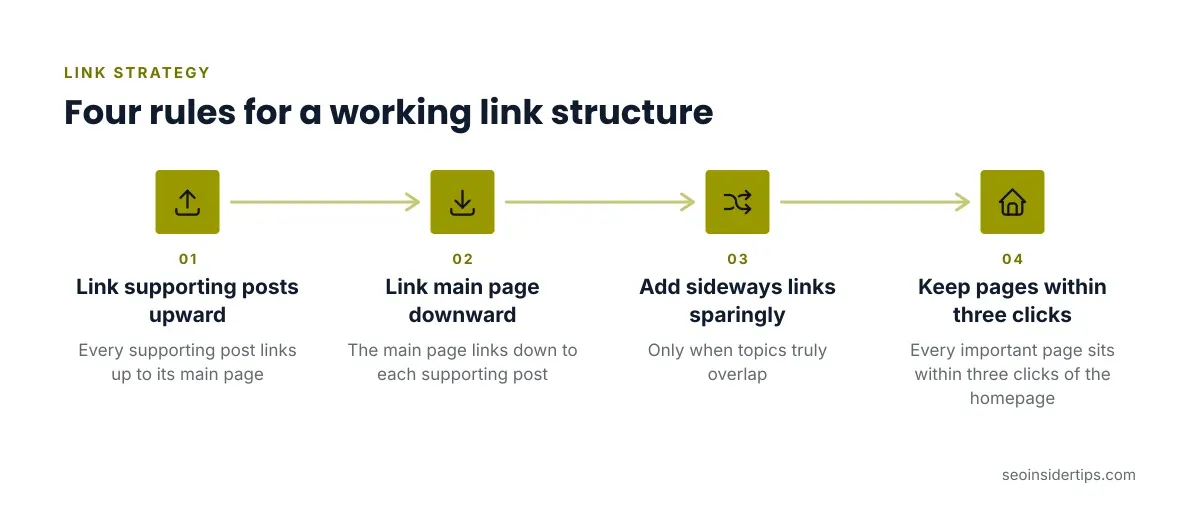
- Every supporting post links up to its main page.
- The main page links down to each supporting post.
- Supporting posts link sideways when topics truly overlap.
- Every important page sits within three clicks of the homepage.
Write this on a spreadsheet. Columns: URL, topic, role (main or support), target keyword. It takes an hour. It saves months of guessing.
One more habit pays off. When you publish a new post, add links to it from at least two older posts. Do not wait for it to be discovered. Old posts already have crawl history and often carry more weight than a brand-new URL.
Write anchor text that helps readers and crawlers
Anchor text is the clickable words. It tells Google and people what to expect on the other side.
Descriptive anchors win. “WordPress permalink settings” says something. “Click here” says nothing. Google reads the words around the link as well, so keep the sentence natural.
Vary your anchors. If every link to a page uses the same exact phrase, it can look forced. Mix exact phrases, partial matches, and plain descriptions. A page about internal linking might get anchors like “internal link audit,” “how to link your posts,” and “linking structure.”
Avoid these common mistakes:
- Stuffing keywords into every anchor
- Using whole sentences as anchor text
- Linking the same URL twice in one paragraph
- Pointing different pages at the same exact anchor, which blurs which page should rank
Placement counts too. A link inside the main body, near the relevant point, is more useful than one buried in a footer. Readers click where the context makes sense.
Keep anchors short. Two to five words is a good range. If you cannot describe the target in five words, the link may not belong there.
Use Gutenberg and the right plugins to speed it up
You can add links by hand in the block editor. Select text, press Ctrl+K (or Cmd+K on Mac), and search for the post title. WordPress shows matching content so you can pick the right URL without leaving the editor.

Plugins help once your site passes a few dozen posts. Three are worth knowing:
| Plugin | Best for | Main trade-off |
|---|---|---|
| Link Whisper | Suggesting links as you write | Paid licence; suggestions need review |
| Rank Math | Link counts and suggestions inside an all-in-one SEO plugin | Heavier plugin if you only want links |
| Yoast SEO | Link suggestions and orphan content checks | Some features sit in the paid tier |
Free options exist too. Redirection is not a linking tool, but it keeps old URLs from breaking when you merge posts. That matters here. If you combine overlapping articles, set up 301 redirects first so the old posts do not compete with the new one.
Be careful with automation. Auto-linking plugins that turn every mention of a word into a link can fill a page with repeats and odd anchors. Use suggestions. Do not trust them blindly. Read each link and ask whether a reader would want it.
Create hub pages that organize your topics
A hub page is the main page of a topic cluster. It covers the subject broadly and links out to every deeper post on it.
Here is a plain example. A hub called “Internal Linking” might link to posts on anchor text, orphan pages, link audits, and plugin comparisons. Each of those posts links back to the hub.
This pattern does two jobs. It tells Google these pages belong together. It also gives readers one place to start, then paths to dig deeper.
Build a hub in four steps:
- Choose a topic with at least four or five supporting posts.
- Write the hub as a real guide, not a list of links.
- Add a short summary and link for each supporting post.
- Link every supporting post back to the hub near its top.
Do not stuff the hub with fifty links. Keep it focused. Twenty good links beat a hundred weak ones.
Name your hub URL clearly, such as /internal-linking/. Keep it stable. If you change it later, redirect the old address.
Audit your links and fix what is broken
Links decay. Posts get deleted, slugs change, and pages get merged. An audit catches the damage.
Start with orphan pages. These are posts with no internal links pointing to them. Google may still find them through a sitemap, but they get no support. Screaming Frog SEO Spider crawls your site and lists pages with zero inlinks. The free version handles up to 500 URLs.
Next, check for broken links. A link to a deleted page returns a 404 error. That wastes crawl budget and frustrates readers. Fix each one by updating the link or adding a 301 redirect.
Then look at redirect chains. If page A redirects to B, which redirects to C, shorten it so A goes straight to C. Google Search Console shows crawl and indexing problems that point to these issues.
Run this audit every quarter for active sites. A short checklist keeps it fast:
- List pages with no inbound internal links
- Fix or remove links returning
404 - Collapse redirect chains
- Confirm main pages receive the most links
- Update old posts to link to new ones
Doing it regularly beats one giant cleanup every two years.
Avoid the mistakes that waste link equity
Some habits quietly undo your work. Spot them early.
Too many links dilute focus. A short post with forty links reads like a directory. There is no fixed limit, but if links outnumber useful ideas, trim them.
Nofollow on internal links is another trap. Adding rel="nofollow" to your own pages tells Google not to pass signals. Use it almost never on internal links.
Menus and footers carry sitewide links to every page. That is fine for core pages. It does not replace contextual links, which carry more meaning.
Ignoring mobile layouts also hurts. If a mobile menu hides links behind scripts that fail to load, crawlers may miss them. Test with the URL Inspection tool in Search Console.
Finally, do not link just to link. Every internal link should help a reader take a sensible next step. If it does not, delete it.
Putting your WordPress internal linking plan into action
Start small. Pick one topic cluster this week. Choose the main page, list the supporting posts, and add the missing links in both directions.
Next, fix your anchors. Replace vague phrases like “read more” with descriptive ones. Then run a quick orphan check and connect any stranded posts.
Finally, make linking part of publishing. Before you hit publish, add links to the new post from two older ones, and link out to relevant existing pages. It adds ten minutes and keeps your structure healthy.
Strong WordPress SEO internal links are not a one-time project. They are a habit. Sites that keep their structure tidy give crawlers and readers an easy path, and that tends to show up in rankings over time.
Frequently asked questions
How many internal links should a WordPress post have?
There is no official number. A good rule is to link wherever a reader would genuinely benefit. Most solid posts carry anywhere from three to ten contextual internal links, depending on length and topic.
Do internal links help SEO as much as backlinks?
They work differently. Backlinks bring outside authority. Internal links spread that authority and guide crawlers. You control internal links completely, so fixing them is usually the faster win.
Should internal links open in a new tab?
Usually not. Internal links work best in the same tab, which keeps navigation simple. Reserve new tabs for outside sources you want readers to return from.
What is an orphan page and why does it matter?
An orphan page has no internal links pointing to it. Crawlers may find it late or skip it. Linking it from a related post or hub page gives it a path and some authority.
Can I rely on a plugin to handle all my internal links?
Plugins speed up suggestions, but they cannot judge relevance the way you can. Use them to find opportunities, then review every link by hand before it goes live.

Leave a Reply