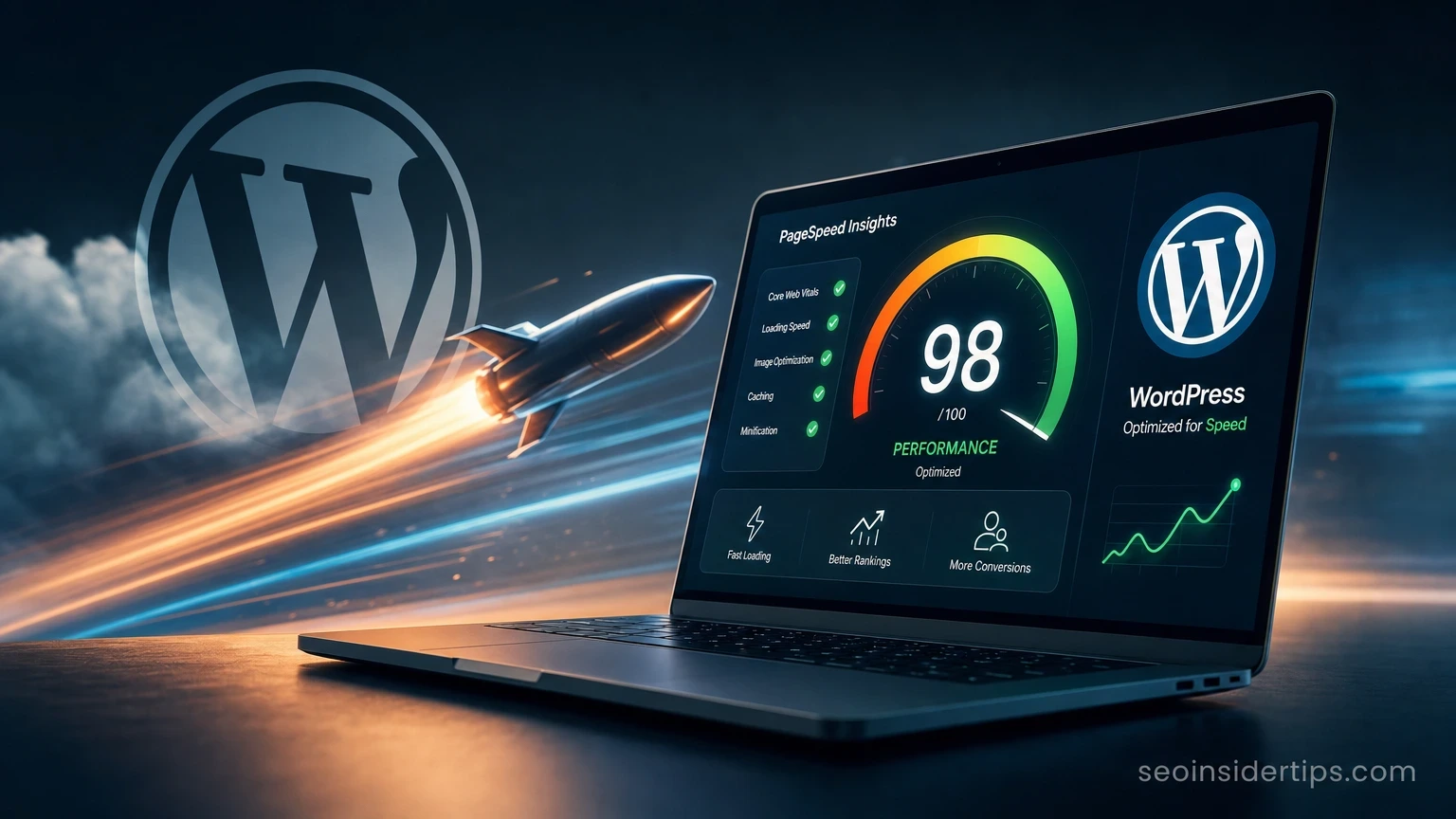
Your site feels fine to you. Then you check Google PageSpeed Insights and see a score of 34. That gap between “feels fine” and “actually fast” is where most WordPress owners lose traffic, rankings, and conversions every single day.
The good news: you do not need a $200/month hosting upgrade or a premium plugin bundle to fix it. Most of the biggest speed gains on WordPress come from free tools, built-in settings, and a handful of configuration changes you can make in under two hours.
Why Your WordPress Speed Score Matters More Than Ever
Slow sites lose real money. Google’s own data shows that a one-second delay in mobile load time cuts conversions by up to 20%. In 2026, Core Web Vitals are a confirmed ranking factor, and Google updates those scores every 28 days.
The three metrics that matter most are LCP (Largest Contentful Paint), which measures how fast your main content loads; TTFB (Time to First Byte), which is the raw server response time; and CLS (Cumulative Layout Shift), which measures visual stability. A good LCP target is under 2.5 seconds. TTFB should sit below 600ms on shared hosting and ideally under 200ms on a VPS or managed host.
Ignoring these numbers is not a neutral choice. Google’s ranking algorithm treats a site scoring below 50 on PageSpeed as a weaker candidate, even when content quality is high. Speed is no longer a “nice to have.”
The Free Audit Tools You Should Run First
Before touching a single plugin, run a proper audit. That way you fix the right things, not just the obvious ones.
Start with Google PageSpeed Insights. Paste your URL, run both mobile and desktop reports, and screenshot the “Opportunities” section. Then run the same URL through GTmetrix – the free tier gives you a waterfall chart that shows exactly which files are blocking your page from loading. Finally, check Google Search Console under Core Web Vitals > Open Report to see real-user data, not just lab scores.
Between these three tools, you will have a prioritised list of issues. Most sites show the same four culprits: unoptimised images, render-blocking CSS (Cascading Style Sheets) and JavaScript, no caching, and no CDN (Content Delivery Network). All four are fixable for free.
Compress and Convert Every Image on the Site
Large images are the single most common LCP killer. A 2MB hero image can add 6 to 8 seconds on a mobile connection. This is the fix with the highest return on time invested.
Install Smush from the WordPress plugin directory – the free version compresses up to 50 images per batch, strips unused EXIF metadata, and enables lazy loading in one click. After bulk-smashing your media library, go to Smush > Bulk Smush > Run Bulk Smush and let it process. A typical site with 200 images sees a 40 to 60% reduction in total image weight.
Next, serve images in WebP format. WordPress 5.8 and later converts uploaded images to WebP automatically if your server supports it. Check by uploading a test image and inspecting the file name in your media library. If you see `.webp` alongside the original, you are already set. If not, Smush Pro handles this, but the free plugin WebP Express does the same job at zero cost.
Set your largest above-the-fold image with `fetchpriority=”high”` in the HTML. This tells the browser to load it before anything else, which directly improves your LCP score by 200 to 500ms on most sites.
Install a Caching Plugin and Configure It Properly
Caching is the fastest way to cut TTFB without changing hosts. Without it, WordPress rebuilds every page from scratch on each visit – querying the database, running PHP, assembling HTML. With caching, it serves a pre-built HTML file instead. The difference is often 400ms to 1,200ms per page load.
WP Super Cache and LiteSpeed Cache are both free and genuinely effective. If your host runs LiteSpeed servers (check your hosting control panel), use LiteSpeed Cache – it has server-level integration that WP Super Cache cannot match. For Apache or Nginx servers, WP Super Cache is the reliable choice.
After installing WP Super Cache, go to Settings > WP Super Cache > Easy and enable caching with one click. Then switch to the Advanced tab and check “Compress pages” and “Cache rebuild.” These two options alone reduce page size by 20 to 30% and prevent cache stampedes during traffic spikes.
Enable GZIP Compression and Browser Caching via.htaccess
Server-level compression shrinks your files before they travel to the browser. Most shared hosts support GZIP but do not enable it by default. Adding a few lines to `.htaccess` fixes this in under five minutes.
Open your `.htaccess` file via Appearance > Theme File Editor or an FTP client. Add the following block above the existing WordPress rules:
“`apache
AddOutputFilterByType DEFLATE text/html text/plain text/xml text/css
AddOutputFilterByType DEFLATE application/javascript application/json
AddOutputFilterByType DEFLATE image/svg+xml
ExpiresActive On
ExpiresByType image/jpeg “access plus 1 year”
ExpiresByType image/png “access plus 1 year”
ExpiresByType image/webp “access plus 1 year”
ExpiresByType text/css “access plus 1 month”
ExpiresByType application/javascript “access plus 1 month”
“`
This block tells Apache to compress HTML, CSS, and JavaScript before sending them, and to cache images for one year in the visitor’s browser. A returning visitor will load your site 30 to 50% faster because their browser skips re-downloading assets it already has.
> ⚠️ Warning: Always back up `.htaccess` before editing. A syntax error here will return a 500 error for the entire site. Keep the original file saved locally.
Minify CSS and JavaScript Without a Paid Plugin
Minification removes whitespace, comments, and redundant characters from code files. A 120KB stylesheet can shrink to 80KB after minification – a 33% reduction that the browser downloads and parses faster.
Autoptimize handles this for free. Install it, then go to Settings > Autoptimize and check “Optimize JavaScript Code,” “Optimize CSS Code,” and “Optimize HTML Code.” Also check “Remove Google Fonts” if you self-host fonts, which saves an extra DNS lookup.
One setting to be careful with: “Defer JavaScript.” Enable it, but test your site immediately after. Some themes and plugins break when JS loads after the HTML. If your menu or sliders stop working, uncheck that option and use the exclude field to whitelist the problematic scripts instead.
After saving, clear your cache and re-run PageSpeed Insights. Most sites see a 5 to 15 point score improvement from minification alone.
Use a Free CDN to Serve Assets Globally
A CDN stores copies of your static files on servers around the world. A visitor in Tokyo gets your CSS and images from a server in Tokyo, not from your origin server in Dallas. Latency drops from 300ms to under 30ms for international visitors.
Cloudflare offers a genuinely useful free tier. Point your domain’s nameservers to Cloudflare, and it automatically caches static assets, adds DDoS protection, and enables HTTP/2. The setup takes about 20 minutes and requires no code changes. After switching, run a GTmetrix test from a distant server location – a 40 to 60% reduction in time-to-first-byte for international traffic is normal.
Cloudflare’s free plan also includes Speed > Optimization > Auto Minify, which minifies HTML, CSS, and JS at the edge. Enable all three. Combined with Autoptimize on the WordPress side, this creates a double-pass minification that catches files the plugin misses.
Clean Up Your Database and Disable Unused Plugins
Bloated databases slow down every page. WordPress stores post revisions, spam comments, transients, and orphaned metadata indefinitely. A site running for two years can accumulate 50,000 rows of junk that adds 100 to 300ms to every database query.
WP-Optimize cleans all of this for free. Go to WP-Optimize > Database and run “Clean all.” It removes post revisions (keep the last 3 per post), auto-drafts, trashed items, and expired transients. On a typical two-year-old site, this recovers 20 to 80MB of database space and measurably reduces query time.
While you are auditing, count your active plugins. Every active plugin adds PHP execution time. A site with 30+ plugins almost always has 8 to 12 that are redundant or inactive. Deactivate and delete anything you have not used in the last 90 days. Each removed plugin can save 20 to 50ms of server-side processing time.
Quick-Win Checklist: Free Speed Settings to Enable Today
After working through the sections above, these are the specific settings worth verifying before you call the job done:
- Enable lazy loading for images: Settings > Media > Lazy load images (built into WordPress 5.5 and later, no plugin needed)
- Set a static front page: Settings > Reading > Static page – this avoids a dynamic query on every homepage visit
- Limit post revisions in `wp-config.php` by adding `define(‘WP_POST_REVISIONS’, 3);` above the “That’s all” line
- Disable WordPress heartbeat on the front end via Settings > Heartbeat Control (free plugin) – this kills an AJAX call that fires every 15 seconds
- Remove query strings from static files: add `remove_action(‘wp_head’, ‘wp_generator’);` to `functions.php` to stop WordPress broadcasting its version number in asset URLs
- Switch to a system font stack in your theme if you currently load Google Fonts – this eliminates one full render-blocking request
Each item here takes under three minutes. Together, they add up to a 200 to 600ms improvement in measured load time.
How to Hold Your Speed Gains Long-Term
Getting a fast score once is easy. Keeping it fast as you add content and plugins is the real discipline.
Set a monthly reminder to re-run PageSpeed Insights and GTmetrix. Score drift is common – a single plugin update can re-introduce render-blocking scripts or disable compression. Catching a regression early means a five-minute fix instead of a full audit. Keep your baseline scores documented somewhere simple, even a shared Google Sheet, so you can see the trend over time.
Update WordPress core, your theme, and all plugins on a regular schedule. Outdated code is not just a security risk – older versions of popular plugins often carry unoptimised database queries and deprecated functions that newer versions have fixed. Running the latest version of a caching plugin, for example, frequently includes 10 to 20% performance improvements over versions from 18 months ago.
The free tools covered here – Smush, WP Super Cache or LiteSpeed Cache, Autoptimize, WP-Optimize, and Cloudflare – form a complete, zero-cost speed stack that rivals what many agencies charge hundreds of dollars to set up. If you want to go deeper after implementing these, exploring technical SEO topics like Core Web Vitals auditing and server-side rendering will give you the next layer of gains that no plugin can automate.
When you implement Optimize WordPress site speed free, revisit the checklist above against your real constraints.
Frequently asked questions
How long does it take to optimize a WordPress site for speed using only free tools?
Most of the changes covered here – image compression, caching, minification, and database cleanup – take two to three hours on a first pass. Running the audit tools and reading the reports adds another 30 minutes. You will not need developer skills for any of it, though editing `.htaccess` requires care and a backup first.
Will these free speed optimizations work on shared hosting?
Yes, and shared hosting is actually where they matter most. Shared servers have limited CPU and memory, so caching and compression do more heavy lifting than on a VPS. GZIP via `.htaccess` and a caching plugin like WP Super Cache are specifically designed for Apache-based shared environments.
Does using a CDN like Cloudflare’s free plan affect my WordPress admin or checkout pages?
Cloudflare’s free plan caches static assets, not dynamic pages like wp-admin or WooCommerce checkout by default. It correctly bypasses caching for logged-in users and pages with cookies. You can verify this under Cloudflare > Caching > Cache Rules – the default WordPress rules are already applied when you connect your domain.
How many plugins is too many for a fast WordPress site?
There is no magic number, but 15 to 20 active plugins is a reasonable ceiling for a well-optimised site. What matters more than count is plugin quality. One poorly coded plugin can add 500ms of load time. The better question is: does every active plugin serve a function you use at least monthly? If not, remove it.
Can I optimize WordPress site speed for free without touching any code?
Almost entirely, yes. Image compression, caching, CDN setup, and database cleaning require zero code. The only code-adjacent steps are the `.htaccess` additions and the `wp-config.php` revision limit – both are copy-paste tasks with no programming knowledge needed. Skipping those two steps still gets you 70 to 80% of the total improvement.


Leave a Reply