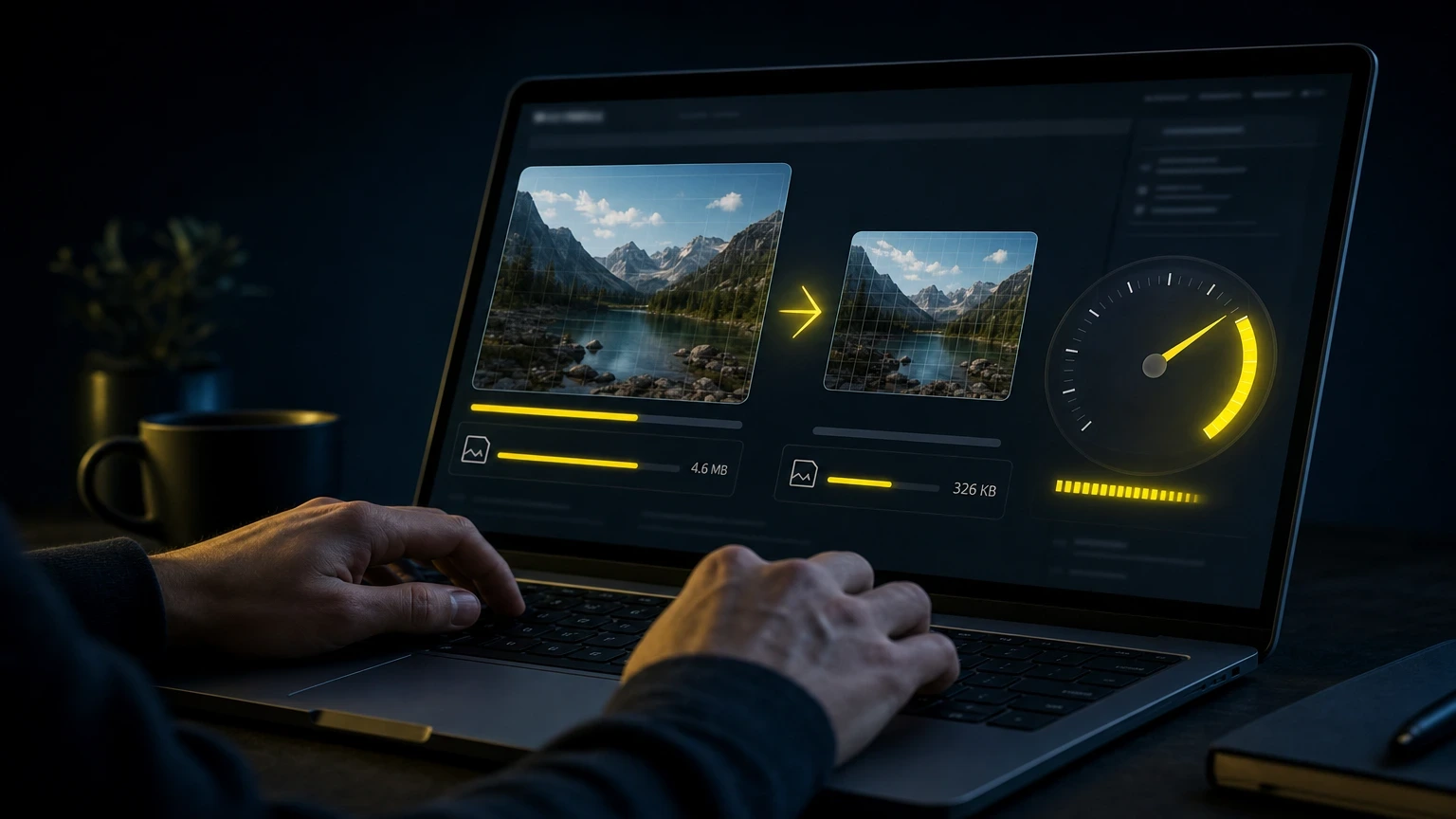
Think your site is slow because of bad hosting or bloated JavaScript? It might actually be your images.
Unoptimized images are the single biggest drag on page speed for most websites. A single uncompressed hero image can weigh 4-6MB and add 10+ seconds of load time on a mid-range mobile connection. That kills your LCP (Largest Contentful Paint) score, pushes users away, and tanks your rankings. The good news: fixing images is one of the fastest wins in technical SEO, and most of it takes under an hour.
Why Image Size Wrecks Your Page Speed Score
Large images are the most common LCP killer. Google‘s own data shows that 70% of mobile pages have an LCP element that’s an image, meaning your hero shot or product photo is almost always what users are waiting on.
Here’s the math. A 3MB JPEG served to a user on a 4G connection (roughly 10 Mbps average) takes about 2.4 seconds just to transfer – before the browser even renders it. Google PageSpeed Insights flags anything above a 2.5-second LCP as “needs improvement.” That one uncompressed image can be your entire problem.
TTFB (Time to First Byte) and total page weight both feed into this. Pages under 1MB load in a median of 1.9 seconds. Pages between 1-4MB jump to 4.1 seconds. The gap is enormous, and images typically account for 50-65% of a page’s total byte size.
The fix isn’t complicated. It’s a matter of choosing the right format, the right dimensions, and the right compression level before the image ever hits your server.
Choose the Right File Format First
Format choice alone can cut image weight by 25-80%. Most people default to JPEG or PNG out of habit, but in 2026 that’s leaving serious performance on the table.
WebP delivers 25-34% smaller files than JPEG at the same visual quality. AVIF goes even further, typically 40-50% smaller than JPEG. Both formats are now supported by all major browsers – Chrome, Firefox, Safari, and Edge all handle them natively. There’s no reason to serve a 400KB JPEG when a WebP version of the same image weighs 260KB.
The practical rule: use WebP for photographs and complex images, use SVG (Scalable Vector Graphics) for logos and icons, and use PNG only when you genuinely need a transparent background on a photo. AVIF is worth using for hero images where you want maximum compression without visible quality loss.
Squoosh is a free browser-based tool from Google that lets you convert and compare formats side by side. You can see the exact file size difference before downloading. For batch conversion on the command line, `cwebp` handles WebP conversion cleanly:
“`bash
cwebp -q 80 hero.jpg -o hero.webp
“`
This command converts `hero.jpg` to WebP at quality level 80, which hits the sweet spot between file size and visual sharpness for most web photography.
4 Steps to Compress Images Without Losing Quality
Compression is where the real weight loss happens. Follow these four steps in order for the best results.
- Resize before you compress. If your content column is 800px wide, there’s zero reason to upload a 4000px image and let CSS (Cascading Style Sheets) scale it down visually. The browser still downloads every pixel. Resize to your actual display dimensions first – this alone can cut file size by 60-75%.
- Set compression quality between 70-85%. For JPEG and WebP, quality 80 is the practical sweet spot. Below 70, artifacts become visible on gradients and skin tones. Above 85, file size climbs fast with minimal visual gain. Use TinyPNG or ShortPixel for lossy compression with a live preview.
- Strip metadata. Every image carries EXIF data – camera model, GPS coordinates, creation date. That metadata adds 10-40KB per image and serves no purpose on a webpage. Both TinyPNG and ShortPixel strip it automatically. On the command line, ExifTool handles this in bulk.
- Run a second pass with a lossless optimizer. After lossy compression, tools like `optipng` (for PNG files) or `mozjpeg` squeeze out another 5-15% with zero quality loss. It’s a small gain, but it adds up across a page with 20+ images.
A realistic target: a product photo that starts at 2.1MB should land at 80-120KB after this process. That’s a 94% reduction with no visible difference to the human eye.
Serve Images Responsively and from a CDN
Responsive images mean each user downloads only the size they actually need. A desktop user with a 1440px screen doesn’t need the same image as someone on a 375px phone, but without `srcset`, they get the same file anyway.
Here’s a basic responsive image implementation in HTML:
“`html
src=”product-800.webp” srcset=”product-400.webp 400w, product-800.webp 800w, product-1200.webp 1200w” sizes=”(max-width: 600px) 400px, (max-width: 1000px) 800px, 1200px” alt=”Blue running shoes on white background” width=”800″ height=”533″ loading=”lazy” > “` This tells the browser to pick the right image variant based on the user’s screen width, saving mobile users from downloading a desktop-sized image. Pair that with a CDN (Content Delivery Network). A CDN stores copies of your images on servers around the world, so a user in Tokyo pulls from a nearby node rather than your origin server in New York. Cloudflare offers a free CDN tier that alone can reduce image TTFB by 40-60% for international visitors. Cloudinary goes further, automatically converting images to WebP or AVIF and resizing them on the fly based on the requesting device. Should I use lazy loading on all images? Not all of them. Images above the fold – especially your LCP image – should load eagerly. Add `loading=”lazy”` only to images that appear below the visible viewport. Lazy-loading your hero image actually delays LCP and hurts your score. Does image alt text affect loading speed? No, alt text is plain text and adds negligible byte weight. But it matters for accessibility and image search ranking, so write descriptive alt text regardless. How often should I re-optimize existing images? Run a site audit with Screaming Frog or Ahrefs once a quarter. Tools flag oversized images automatically. New uploads are the bigger issue – set a workflow rule so every image is compressed before it goes into your CMS. What’s a realistic LCP target after optimizing images? Under 2.5 seconds is Google’s “good” threshold. With proper format, compression, and a CDN in place, most sites see LCP drop from 4-6 seconds to under 2 seconds. That’s a meaningful ranking signal improvement. If you’re running WordPress, the fastest path is a plugin that handles everything automatically. Imagify and ShortPixel both compress on upload, convert to WebP, and serve the optimized version without you touching a file manually. ShortPixel’s paid plan starts at around $4.99/month for 10,000 images. Go to Media > Add New and your plugin handles the rest once configured. In ShortPixel, navigate to Settings > ShortPixel and set compression mode to “Lossy” and enable WebP conversion. That two-minute setup replaces hours of manual work. For non-WordPress sites, Gatsby has built-in image optimization via `gatsby-plugin-image` that handles resizing, format conversion, and lazy loading automatically at build time. Next.js has a similar native ` One thing I see constantly: people install an optimization plugin but forget to bulk-process existing images. Every plugin has a “bulk optimize” feature. Run it. I worked with a client who had 3,400 unoptimized images in their media library and cut their average page weight from 3.8MB to 900KB in a single afternoon. The biggest mistake is treating image optimization as a one-time cleanup. It works best as a habit baked into how you publish. Set a hard rule: no image above 150KB goes live without compression. That single constraint prevents 90% of the problems. If you’re working with a team, add image specs to your editorial guidelines – maximum upload dimensions (1200-1600px for most layouts), required format (WebP), and a compression step before upload. Tools like Imagify enforce this automatically at the server level, which removes the human error factor. The measurable payoff is real. Faster image loading improves LCP, which is a confirmed Google ranking factor. Pages that move from a “poor” to “good” LCP score typically see a 10-20% improvement in organic click-through rate as rankings improve. Bounce rate drops too – Google’s research found that pages loading in 1-3 seconds have a 32% lower bounce rate than pages taking 7+ seconds. If you want to go deeper after locking in image performance, the next natural area to tackle is lazy loading JavaScript and deferring render-blocking resources – both follow the same principle of reducing what the browser has to fetch before your page becomes usable. When you implement How to optimize images for faster loading speeds, revisit the checklist above against your real constraints. What is the best image format for websites in 2026? WebP is the best all-around choice for photographs and complex images. It’s 25-34% smaller than JPEG at comparable quality and is supported by every major browser. AVIF offers even better compression (40-50% smaller than JPEG) and is worth using for hero images. Use SVG for logos and icons, and avoid PNG unless you need photo transparency. How do I check if my images are slowing down my site? Run your URL through Google PageSpeed Insights or GTmetrix. Both tools flag oversized images, list which files are the biggest offenders, and give you a specific “potential savings” number in KB. PageSpeed also shows your LCP element directly, so you can see exactly which image is holding the page back. Does compressing images hurt visual quality? At quality settings between 70-85%, the difference is invisible to most users. The key is using lossy compression for photographs (where small imperfections blend in) and lossless for graphics with flat colors or sharp edges. Always compare the original and compressed versions side by side in a tool like Squoosh before publishing. How many images is too many on a single page? There’s no hard number, but total page image weight matters more than count. Keep your total image payload under 500KB for a typical landing page. If you have a gallery with 30 images, lazy loading and pagination keep the initial load manageable – only the first 3-5 images need to load immediately. Can image optimization improve my Google rankings? Yes, indirectly but measurably. LCP is a Core Web Vitals metric and a confirmed ranking signal since Google’s 2021 Page Experience update. Improving LCP from “poor” (above 4 seconds) to “good” (under 2.5 seconds) through image optimization removes a direct ranking penalty and improves user engagement signals that Google also monitors.Quick Answers: Common Image Optimization Questions
WordPress and CMS-Specific Image Optimization
Making Image Optimization a Permanent Part of Your Workflow
Frequently asked questions



Leave a Reply