
Does a technical SEO audit tool actually find your real problems, or just hand you a 2,000-line report nobody reads? Most crawlers are great at surfacing noise and mediocre at telling you what matters. The difference between a useful audit and a wasted afternoon is knowing which checks to run first and what counts as a real fix versus a cosmetic one.
This checklist walks through the checks that actually move the needle: crawl and index health, Core Web Vitals, schema, redirects, and migration risk. You’ll also get a simple template structure you can copy into a spreadsheet today. If you want the full walkthrough first, our seo audit guide covers the end-to-end process this checklist slots into.
Confirm What Google Can Actually Crawl
Start with crawlability, not keywords. If Googlebot can’t reach a page, nothing else about it matters.
Open robots.txt at yourdomain.com/robots.txt and read it line by line. A common mistake is blocking /wp-admin/ but accidentally catching /wp-content/uploads/ with an overly broad wildcard, which hides images from Google Images. Here’s a safe baseline:
User-agent: *
Disallow: /wp-admin/
Allow: /wp-admin/admin-ajax.php
Sitemap: https://yourdomain.com/sitemap.xml
This tells crawlers to skip the admin area but still fetch the one admin file WordPress needs for AJAX requests, and it points directly to your sitemap.
Next, check Google Search Console under Settings > Crawl stats to see how often Googlebot visits and whether response times are climbing. A technical SEO audit tool like Screaming Frog or Sitebulb will crawl the whole site and flag pages blocked by robots.txt, noindex tags, or canonical conflicts in one pass, which is faster than checking URLs one at a time in Search Console. Cross-reference the crawler’s list against your XML sitemap. Pages in the sitemap that the crawler marks as blocked are the first thing to fix.
Check Indexation Before You Chase Rankings
A page that isn’t indexed can’t rank, full stop. This is the step people skip because it feels basic, and it’s exactly where budget gets wasted chasing content fixes on pages Google never sees.
Run a site:yourdomain.com search to get a rough indexed count, then compare it against the URL count in your sitemap. A gap of more than 10-15% usually means something structural is wrong, not just a few stray pages. In Search Console, go to Indexing > Pages and read the exclusion reasons. “Crawled – currently not indexed” is different from “Discovered – currently not indexed”: the first means Google looked and passed, the second means it hasn’t gotten there yet.
The usual culprits behind “crawled but not indexed” are thin content, duplicate pages competing with a stronger canonical, or orphaned pages with no internal links pointing to them. Check Google’s documentation on indexing for the full list of exclusion categories before assuming it’s a quality problem. Sometimes it’s just a sitemap that hasn’t been resubmitted in months.
Diagnose Core Web Vitals Without Guessing
Slow pages lose rankings and visitors both. A 3-second load delay can push bounce rate up sharply on mobile, according to Google’s own research on page speed.
Open PageSpeed Insights and pull both the lab data and the field data (the latter comes from real Chrome users via CrUX). Largest Contentful Paint, or LCP, is the time it takes the biggest visible element to render; Google’s threshold for “good” is under 2.5 seconds. Interaction to Next Paint, or INP, measures responsiveness to clicks and taps, with “good” sitting under 200 milliseconds. Cumulative Layout Shift, or CLS, tracks visual stability, and anything under 0.1 is fine.
The most common LCP killer is an unoptimized hero image loading without priority hints. Here’s the fix:
<img src="hero.jpg" fetchpriority="high" width="1200" height="600" alt="Product hero image">Setting fetchpriority="high" tells the browser to fetch this image before less critical assets, and the explicit width/height attributes prevent layout shift while it loads.
For INP problems, look at third-party scripts first, things like chat widgets and heatmap trackers tend to block the main thread. A technical SEO audit tool with a built-in Lighthouse integration, such as Sitebulb or Ahrefs Site Audit, will flag render-blocking resources automatically instead of making you dig through DevTools manually.
Validate Structured Data Before It Breaks Your Rich Results
Schema that validates in a test tool can still fail in production if the page template changes later. That’s the trap most sites fall into.
Use Google’s Rich Results Test on live URLs, not just staging copies, since caching and CDN behavior can differ. Pull up Search Console’s Enhancements reports for things like FAQ, Product, or Review schema and check for warnings, not just hard errors. Warnings often mean a rich result still shows but with missing optional fields that would have made it more useful.
A typical Product schema block looks like this:
{
 "@context": "https://schema.org",
 "@type": "Product",
 "name": "Example Product",
 "offers": {
 "@type": "Offer",
 "price": "49.99",
 "priceCurrency": "USD",
 "availability": "https://schema.org/InStock"
 }
}
This tells Google the product name, price, currency, and stock status, all fields it can surface directly in search results.
⚠️ Warning: Never copy schema from a template site without updating every field. Mismatched
priceoravailabilityvalues against what’s visible on the page violate Google’s structured data guidelines and can get rich results suppressed.
Check Schema.org directly if you’re unsure which property names are valid for a given type. It’s the canonical source, and third-party generators sometimes lag behind schema updates.
Audit Redirects for Chains, Loops, and Lost Equity
Every extra hop in a redirect chain costs time and sometimes equity. Google generally follows up to a handful of redirect hops before giving up, so a chain of four or five redirects risks the final destination never getting crawled at all.
Export your redirect map and crawl it with Screaming Frog’s “Redirect Chains” report, or check response headers manually with:
curl -I https://yourdomain.com/old-pageThis returns the HTTP status and Location header, showing exactly where the request gets sent and whether it’s a 301 (permanent) or 302 (temporary) redirect.
A 302 left in place for months, when the move was actually permanent, signals ambiguity to Google about which URL should rank. Swap it to a 301 once you’re certain the change is permanent. Also watch for redirect loops, page A to B to A, which usually happen after a plugin update rewrites rules without checking for existing entries in .htaccess or nginx.conf.
location /old-page {
 return 301 https://yourdomain.com/new-page;
}
This nginx rule sends a permanent redirect in one hop, which is cleaner than chaining through an intermediate URL.
Run These Checks in Order, Every Time
Some checks are quick wins; others take longer but catch bigger problems. Here’s the order that catches the most issues per hour spent:
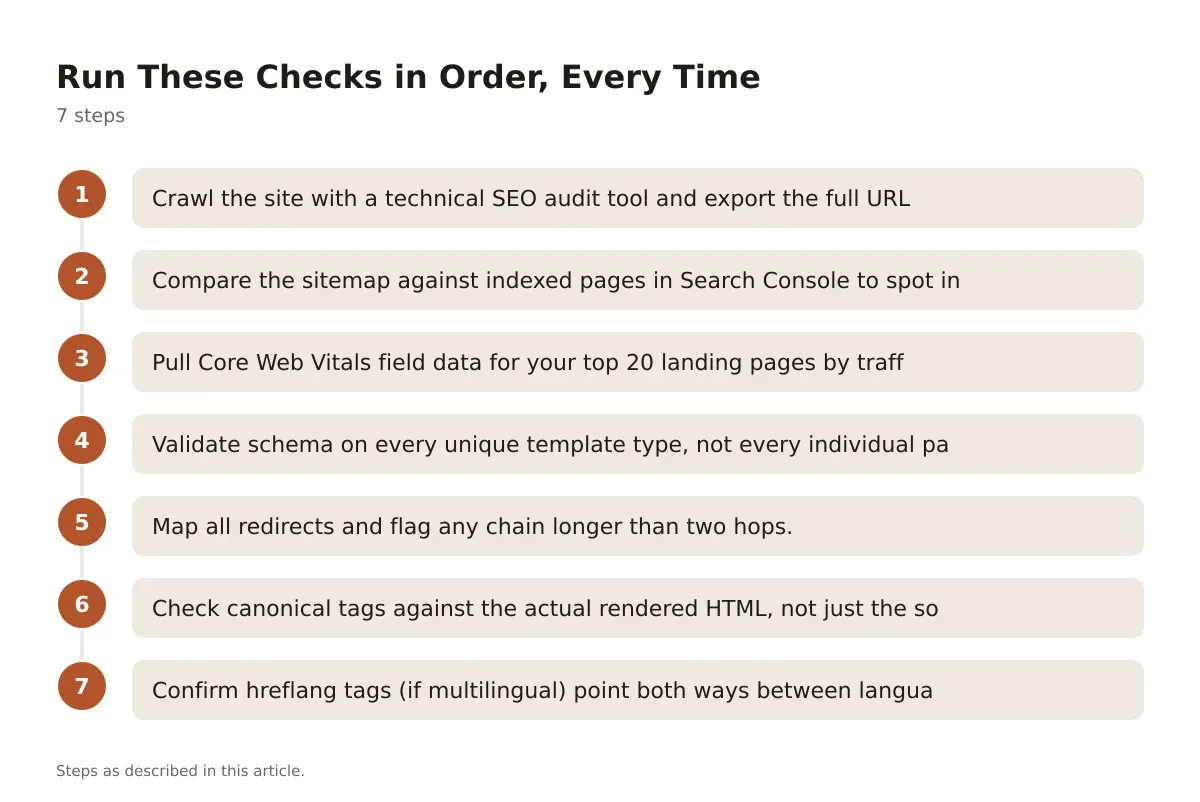
- Crawl the site with a technical SEO audit tool and export the full URL list with status codes.
- Compare the sitemap against indexed pages in Search Console to spot indexation gaps.
- Pull Core Web Vitals field data for your top 20 landing pages by traffic.
- Validate schema on every unique template type, not every individual page.
- Map all redirects and flag any chain longer than two hops.
- Check canonical tags against the actual rendered HTML, not just the source view.
- Confirm hreflang tags (if multilingual) point both ways between language versions.
This order front-loads the checks that affect the most pages at once, so you’re not three hours into a schema deep-dive before realizing half the site isn’t indexed.
Side-by-Side: Choosing a Technical SEO Audit Tool
Not every tool fits every site size or budget. Here’s how the common options actually differ in daily use.
Screaming Frog SEO Spider
Desktop-based, crawls by installing locally rather than through a cloud dashboard. Free tier caps at 500 URLs, which is fine for small sites but limiting for anything over a few thousand pages. Paid license opens up JavaScript rendering, custom extraction, and API integrations with Search Console and Google Analytics. Best fit for hands-on technical auditors who want granular control over crawl settings.
Sitebulb
Also desktop-based, with a visual-first reporting style that’s easier to hand to a non-technical client or manager. Built-in prioritization hints tell you which issues to fix first, which Screaming Frog leaves to your own judgment. Slightly steeper learning curve for advanced custom crawls, but stronger at explaining why an issue matters.
Ahrefs Site Audit
Cloud-based and scheduled, so it recrawls automatically on a set cadence without you triggering it manually. Strong at combining technical issues with backlink and content gap data in one platform, since it’s part of a broader SEO suite. Less granular for deep technical diagnostics compared to a dedicated desktop crawler, but convenient if you already pay for the platform for other SEO work.
Google Search Console
Free, and the only tool on this list with direct access to Google’s own index data rather than a third-party crawl simulation. No crawling of your full site structure, it only reports on URLs Google has already tried to process. Pairs best alongside one of the above rather than replacing them.
| Tool | Crawl Type | Best For | Pricing Model |
|---|---|---|---|
| Screaming Frog | Desktop | Granular technical control | Free tier, paid license for full features |
| Sitebulb | Desktop | Client-friendly reporting | Paid, trial available |
| Ahrefs Site Audit | Cloud, scheduled | Combined technical + content/backlink data | Subscription, part of broader platform |
| Google Search Console | Index-only, no simulated crawl | Confirming what Google actually indexed | Free |
If budget is tight, start with Search Console plus Screaming Frog’s free tier, and our free seo audit tools roundup covers more no-cost options worth testing before you commit to a paid license.
Build a Migration Checklist Before You Move Anything
Site migrations break more traffic than almost any other technical change. The risk isn’t the migration itself, it’s skipping the pre-migration audit that tells you what you’re about to lose.
Before touching DNS or launching a new CMS, crawl the existing site completely and save that crawl as your baseline. You’ll need it to confirm every URL has a mapped destination afterward. A website migration seo checklist should cover: full URL-to-URL redirect mapping (not just folder-level rules), updated XML sitemap submission, canonical tags pointing to the new domain or structure, and a frozen copy of robots.txt reviewed for anything that might now block the new environment by accident.
⚠️ Warning: Never launch a migration with
Disallow: /left inrobots.txtfrom a staging environment. This single line blocks the entire site from crawling and has taken down traffic on launches that were otherwise flawless.
After launch, monitor Search Console’s Indexing > Pages report daily for the first two weeks. A sudden spike in “Not found (404)” means redirects were missed; a spike in “Alternate page with proper canonical tag” usually means canonical URLs weren’t updated to match the new domain structure.
Format Your Audit Findings Into a Usable Template
A report nobody acts on is wasted effort. Structure matters as much as the findings themselves.
Build your template with five columns: Issue, Page/URL Affected, Severity (critical, moderate, minor), Fix, and Owner. Group issues by category (crawl, index, speed, schema, redirects) rather than by page, since a stakeholder reading it wants to know “how many pages have broken schema,” not “what’s wrong with page 47.” Severity should reflect traffic impact, not just technical correctness, a broken schema tag on a page with ten visits a month matters less than a slow LCP on your top landing page.
Keep a running “fixed” column too, dated, so the next audit can compare against this one instead of starting from zero. This is also where a spreadsheet beats a one-off PDF report: it survives past the single project and becomes the baseline for the next quarterly check.
Getting the Most Out of Your Audit Process
A technical SEO audit tool is only as useful as the process wrapped around it. Running Screaming Frog once a quarter and ignoring the output is barely better than not running it at all. The real value comes from treating the audit as a recurring habit tied to a template you actually update, not a one-time report that gets shelved after the first read.
Prioritize by traffic impact, not alphabetical order or whatever the crawler lists first. A redirect chain on a page getting five visits a month matters far less than a Core Web Vitals issue on your highest-converting landing page. Fix the cheap, high-impact items first: broken robots.txt rules, missing canonical tags, and 302s that should be 301s. Then move to schema and speed work, which usually take longer to implement and test.
For a broader view of how technical checks fit alongside on-page and off-page work, our SEO checklist breaks down the full picture, and if you’re still comparing crawlers for your specific site size, choosing an SEO site audit tool that finds real problems walks through the decision in more depth.
Frequently asked questions
What is the best technical SEO audit tool for a small site?
For sites under a few thousand pages, Screaming Frog’s free tier plus Google Search Console covers most needs without a subscription. You get full crawl visibility and real indexing data without paying for scheduled cloud crawls you don’t need yet. Upg




Leave a Reply