
Most site owners open Google Search Console once a month, glance at the graph, and close the tab. That habit wastes the best free diagnostic tool in SEO.
Used properly, google search console seo work turns this dashboard into an early-warning system and a keyword research tool at the same time. It tells you what Google actually sees, what queries bring clicks, and what’s quietly bleeding traffic before rankings crash. This guide walks through setup, keyword discovery, backlink checks, and where Google Search Console stops being enough, including when to look at google search console alternatives.
Setting Up Search Console Without Breaking Verification
Start with the property type, not the tool itself. Pick wrong here and you’ll redo everything later.
Google gives you two options: a Domain property or a URL-prefix property. Domain properties cover http, https, www, and non-www versions all at once through a DNS TXT record. URL-prefix properties verify one exact URL pattern, usually through an HTML file upload, a meta tag, or Google Analytics linkage.
For most site owners, Domain property is the better default. It captures data across subdomains and protocols without juggling four separate properties. The catch: DNS verification requires access to your domain registrar or DNS provider, which marketers without IT access sometimes don’t have. In that case, URL-prefix with the HTML tag method works fine, just verify both the https://www and https://non-www versions if your site doesn’t force a redirect.
One mistake that trips up agencies constantly: verifying the property, then migrating to a new CMS and accidentally removing the verification file or meta tag. Check Settings > Ownership verification after any site migration. If it shows a warning icon, re-verify immediately or you’ll lose weeks of data continuity.
Reading the Performance Report Like a Diagnostic Tool
The Performance report isn’t a vanity dashboard. It’s where problems surface first.
Go to Performance > Search results and set the date comparison to “Last 3 months vs previous period.” A sudden click drop with impressions holding steady usually means a ranking drop, not a demand drop. If both impressions and clicks fall together, that’s often seasonal or a real traffic decline, not a technical issue.
Filter by query, then by page, to isolate which URLs lost visibility. Cross-reference against Google’s search status dashboard and the Search Central blog for core update timing. If the drop lines up with a documented update, that’s your answer before you touch a single line of code.
Average position matters less than most SEOs treat it. A page sitting at position 8 with high impressions and low CTR tells you the snippet needs work, not the rankings. A page at position 15 with strong CTR relative to its position is actually overperforming, worth protecting rather than “optimizing” into a worse result.
Finding New Keywords Hiding in Your Own Data
This is the part most guides skip, and it’s where Search Console beats paid tools for one specific job.
Every query that already brings impressions is a keyword Google already associates with your page. Go to Performance > Search results, filter by a target page, then sort queries by impressions descending. Queries with high impressions but low clicks (under 2% CTR) are your fastest wins: you’re already ranking, you just need a better title tag or meta description.
To find genuinely new keyword opportunities, filter by position 11-20 (Google doesn’t let you filter directly, so export to Google Sheets and filter the position column there). These are queries where you’re on page 2, close enough that modest content or internal linking improvements can push them to page 1.
A worked example: a product page ranks position 14 for “waterproof hiking boots men” with 800 monthly impressions and a 1.1% CTR. The title tag says “Men’s Boots – Brand Name.” Rewriting it to include “waterproof” and “hiking” directly, matching the query language, is a five-minute fix that regularly moves CTR into the 3-5% range for queries already ranking top 20. That’s not a guess, it’s standard on-page alignment, and Search Console is the only free tool that shows you the exact query wording to match.
This workflow answers both “how to find keywords in google search console” and “what queries should I target next” without opening a third-party keyword tool.
Fixing Index Coverage Problems Before They Spread
A page that isn’t indexed can’t rank, full stop.
Check Indexing > Pages (previously called Coverage). Google buckets everything into “Indexed” and “Not indexed,” then breaks the second group into reasons: Crawled - currently not indexed, Discovered - currently not indexed, Excluded by noindex tag, Duplicate without user-selected canonical, and others.
Crawled - currently not indexed is the most common and the most misread. It doesn’t mean there’s an error. It means Google crawled the page and decided it wasn’t worth indexing, usually due to thin content, duplication, or low perceived value. The fix isn’t technical, it’s editorial: expand the content, differentiate it from similar pages, or consolidate it into a stronger page with a 301 redirect.
Discovered - currently not indexed means Google knows the URL exists (from a sitemap or internal link) but hasn’t crawled it yet, often due to crawl budget constraints on larger sites. Check your robots.txt isn’t accidentally blocking the path:
User-agent: *
Disallow: /blog/drafts/
This line blocks anything under /blog/drafts/ from being crawled at all. If a live page accidentally sits in a disallowed folder, it will never move past “Discovered.”
⚠️ Warning: Never remove a URL from the index via the Removals tool as a permanent fix. It’s temporary, roughly six months, and the underlying cause (noindex tag, robots block, thin content) will resurface the issue once it expires.
Reading the Backlinks Report Without Overreacting
Search Console’s Links report shows what it sees, not everything that exists.
Go to Links > Top linking sites and Links > Top linking pages. This data lags behind real-time, typically by days to a couple of weeks, and it only shows a sample for very large link profiles, not an exhaustive list. Don’t treat a sudden missing domain as proof of a lost link; it may just mean Google hasn’t recrawled that referring page yet.
The genuinely useful part is the “Top linking text” subsection, showing the anchor text pointing to your domain. A spike in exact-match commercial anchors from low-quality domains is worth investigating through the Google Disavow Tool only after you’ve confirmed the links are actually harmful, not just unfamiliar. John Mueller from Google has repeatedly said most sites never need to disavow anything; manual spam actions are rare and usually come with an explicit notification in Security & Manual Actions.
For deeper backlink analysis, including domain authority metrics and historical link data Search Console doesn’t track, tools like Ahrefs or Semrush fill the gap. Search Console tells you what Google currently credits; third-party tools tell you the fuller picture and help you prioritize outreach.
Search Console vs Google Analytics: What Each One Actually Answers
These two tools get confused constantly, and using the wrong one wastes time.
What Search Console shows
Search Console answers pre-click questions: what query someone typed, what page Google served, where it ranked, and whether they clicked. It’s entirely about organic Google Search behavior, nothing else. No paid traffic, no social, no direct visits, no other search engines.
What Google Analytics 4 shows
Google Analytics 4 answers post-click questions: what the visitor did once they landed, how long they stayed, what converted, where they dropped off. It covers every traffic source, not just organic search, and it tracks on-site behavior Search Console has no visibility into at all.
Where they overlap and where they don’t
Neither tool replaces the other. Search Console is diagnostic for visibility and technical health. GA4 is diagnostic for engagement and conversion. A page can rank well and get clicks (good Search Console data) while converting terribly (bad GA4 data), and that’s a content or UX problem, not an indexing problem. Linking the two accounts under Search Console Settings > Associations pulls a limited Search Console view directly into GA4 reports, useful for quick checks but not a substitute for working in both tools separately.
Monitoring Core Web Vitals and Mobile Usability
Speed problems show up here before they show up in rankings.

Check Experience > Core Web Vitals. Google groups URLs by metric status: Poor, Needs Improvement, Good, measured against three thresholds: LCP (Largest Contentful Paint) under 2.5 seconds, INP (Interaction to Next Paint) under 200 milliseconds, and CLS (Cumulative Layout Shift) under 0.1, per Google’s official thresholds.
This report uses field data from real Chrome users (the CrUX dataset), not lab tests, so a page can pass PageSpeed Insights in a lab environment and still show “Poor” here if real visitors on slow connections or older phones experience it differently. That’s the data you should trust more, because it reflects your actual audience.
The Mobile Usability report flags separate issues: text too small to read, clickable elements too close together, content wider than the screen. These are usually CSS (Cascading Style Sheets) problems, often from a theme update or a plugin injecting fixed-width elements. Fix the template, not individual pages, since usability issues almost always trace back to one shared stylesheet or component.
Submitting Sitemaps and Requesting Indexing Correctly
A sitemap doesn’t guarantee indexing. It just tells Google where to look.
Submit your sitemap at Indexing > Sitemaps, pointing to sitemap.xml or whatever path your CMS generates (sitemap_index.xml is common for WordPress sites using Yoast SEO or Rank Math). Confirm it returns a 200 OK status and lists real URLs, not a mix of noindexed or redirected pages, which just wastes crawl attention.
For individual URLs needing fast attention, say, after fixing a page that was wrongly noindexed, use URL Inspection > Request Indexing. This has a daily quota per property and works best for a handful of important pages, not bulk resubmission. For large-scale changes (migrating hundreds of URLs, restructuring a site), resubmitting the sitemap and waiting for the natural recrawl cycle is more reliable than requesting each URL individually.
Note: Google has stated requesting indexing doesn’t guarantee faster or better ranking, it only prioritizes the crawl, not the ranking evaluation.
Tracking International and Structured Data Signals
Two reports get ignored because they only matter for specific site types, but when they apply, they matter a lot.
If your site serves multiple countries or languages, check whether hreflang tags are implemented correctly. Search Console doesn’t have a dedicated hreflang report inside the newer interface, but errors often surface indirectly through duplicate content flags or unexpected country-specific query data in the Performance report filtered by country.
The Enhancements section (under Experience or sometimes a standalone menu, depending on your site’s schema usage) reports on structured data types Google has detected: Product, Review, FAQ, Article, and others. If you’ve added schema markup via JSON-LD, this is where you verify it’s valid and being read correctly:
{
 "@context": "https://schema.org",
 "@type": "Article",
 "headline": "How to Use Google Search Console for SEO Growth",
 "datePublished": "2026-01-15"
}
This snippet tells Google the page is an article with a specific headline and publish date, which can influence how it’s displayed in search results. Validate changes with the Rich Results Test before assuming Search Console will reflect them immediately, since enhancement data updates slower than the Performance report.
Making Search Console Part of a Weekly Routine
Search Console rewards consistency more than depth on any single visit. Here’s a practical weekly and monthly cadence:
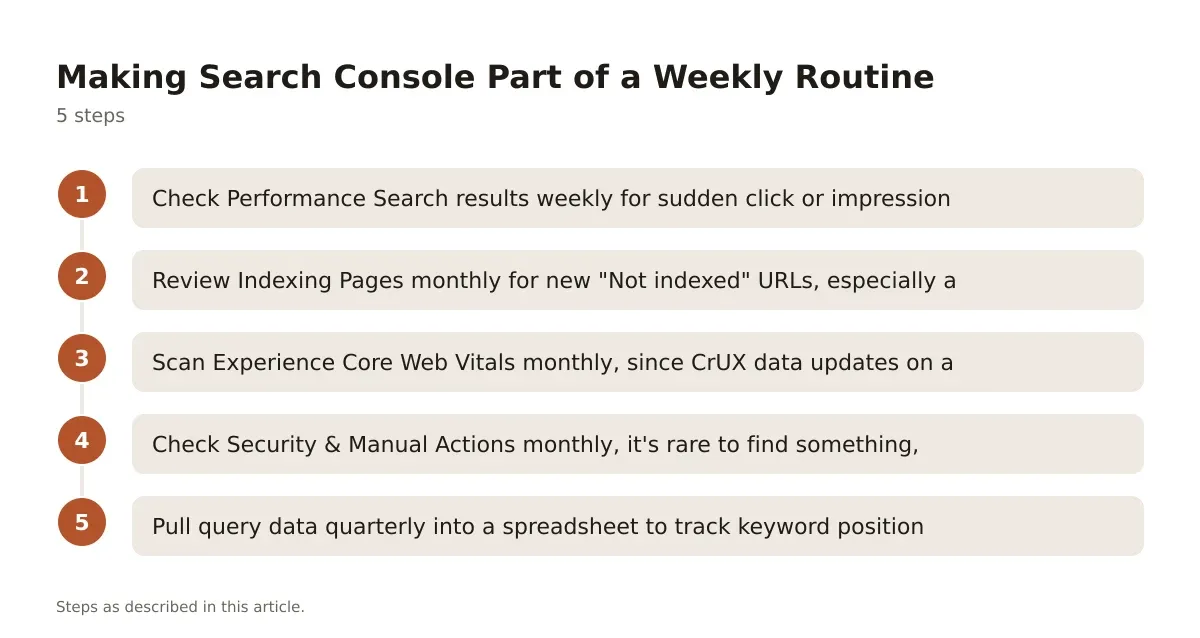
- Check Performance > Search results weekly for sudden click or impression drops on your top 20 pages.
- Review Indexing > Pages monthly for new “Not indexed” URLs, especially after publishing or migrating content.
- Scan Experience > Core Web Vitals monthly, since CrUX data updates on a rolling 28-day window.
- Check Security & Manual Actions monthly, it’s rare to find something, but a manual action left unnoticed for weeks compounds the damage.
- Pull query data quarterly into a spreadsheet to track keyword position trends over time, since Search Console only retains 16 months of history.
That last point matters more than people realize. Export data regularly if you want year-over-year comparisons beyond the built-in limit.
Getting the Most Out of This Free Toolset
Search Console won’t tell you everything. It has no competitor data, limited historical retention, sampled backlink data, and no keyword volume numbers. For deeper research, pairing it with a dedicated tool or exploring google search console alternatives fills the gaps it leaves open.
What it does well, nothing else does for free: real query-level data straight from Google, actual indexing status, and genuine Core Web Vitals field data from real visitors. That combination is why google search console seo work remains the starting point for any technical audit, regardless of what paid tools get layered on top later.
Treat it as a weekly habit, not a monthly report. The sites that catch indexing problems within days, not months, are the ones checking these reports on a schedule, not just when traffic has already dropped.
Frequently asked questions
Is Google Search Console enough for keyword research on its own?
It’s a strong starting point but not a complete keyword research tool. It only shows queries where you already have impressions, so it can’t surface entirely new topic opportunities the way a tool with search volume and competitor gap data can. Use it to refine and expand on keywords you’re already ranking for, then pair it with a dedicated keyword tool for net-new topic discovery.
How often does Search Console update its data?
Performance data typically has a 1-3 day delay and Google explicitly states it isn’t real-time. Core Web Vitals data refreshes on a rolling 28-day window because it’s based on aggregated field data. Index coverage status can update within days of a recrawl but sometimes takes longer for low-priority pages.
Why does Search Console show different numbers than Google Analytics?
They measure different things entirely. Search Console counts impressions and clicks from Google Search results specifically, while GA4 counts s



Leave a Reply