
You’ve got a client site that lost 30% of its organic traffic overnight, or maybe it’s your own project and rankings have gone flat for no obvious reason. You open Google Analytics, stare at the graph, and have no idea where to start looking.
This is exactly where an SEO site audit tool earns its keep. The right one surfaces crawl errors, indexing gaps, and speed issues in minutes instead of days of manual digging through source code. The wrong one buries you in noise and tells you nothing about what’s actually costing you traffic.
What an SEO Site Audit Tool Actually Checks
A real audit tool crawls your site like Googlebot does, then flags anything that blocks indexing or hurts rankings. That’s the short version.
Under the hood, it’s running three jobs at once: a crawler that follows every internal link, a comparison engine that checks your pages against on-page SEO rules, and a reporting layer that turns raw data into a prioritized list. Tools like Screaming Frog SEO Spider, Ahrefs, and Semrush all follow this same basic structure, even though their interfaces look nothing alike.
The checks worth caring about fall into four buckets: crawlability (can bots reach the page), indexability (should the page be in Google’s index), on-page signals (titles, headers, canonical tags), and technical health (site speed, mobile rendering, structured data). A tool that only checks one of these buckets, like a pure backlink checker, isn’t a site audit tool. It’s a different product wearing the audit label.
Most audits also pull in Core Web Vitals data now, since Google folded page experience signals into ranking factors. That means your audit tool needs to either run Google PageSpeed Insights checks itself or import data from Google Search Console.
Crawl Errors: The First Thing Any Audit Should Catch
Crawl errors mean Googlebot hit a wall somewhere on your site. That wall could be a broken link, a server timeout, or a redirect loop, and each one wastes crawl budget.
Here’s how you spot them. Open your audit tool’s crawl report and filter by response code. A healthy site shows mostly 200 OK statuses. Anything showing 404, 500, or 503 in bulk is a red flag worth investigating immediately.
Status Code Count Example URL
200 OK 4,812 /blog/technical-seo-guide
404 87 /old-product-page
500 12 /checkout/step-3
301 340 /category/shoes → /shop/shoes
This table format (most tools render it this way) shows you exactly where the crawl broke down and how often it happened. Eighty-seven 404s isn’t catastrophic on a 5,000-page site, but if those pages still have inbound links from other sites, you’re leaking link equity every day they stay broken.
The fix depends on the cause. If a page was deleted on purpose, add a 301 redirect in .htaccess or your CMS redirect manager. If it’s a server error, check your hosting logs, because that’s usually a backend problem the audit tool can flag but not explain.
⚠️ Warning: Don’t mass-redirect everything to your homepage to clear 404s fast. Google treats irrelevant redirects as a soft 404 signal, and it can hurt rankings on the pages you redirected to.
Indexability Problems That Audits Catch But Humans Miss
Indexability bugs are sneaky because the page looks fine in a browser. Only the audit tool, or Search Console, tells you Google can’t actually index it.
The most common culprit is an accidental noindex tag left over from staging. Check your audit report’s “indexability” column, then verify directly in page source:
<meta name="robots" content="noindex, follow">This single line tells every search engine to leave the page out of the index entirely, even though links on it still get followed. Developers often leave this in place after moving a site from staging to production, and it can sit there for months before anyone notices the traffic drop.
A second common issue is canonical tags pointing to the wrong URL. If your audit tool flags “canonical mismatch,” open the page and check:
<link rel="canonical" href="https://example.com/wrong-page/">If that href doesn’t match the page you’re actually viewing, Google may consolidate ranking signals to the wrong URL, or ignore your canonical entirely if it looks inconsistent with other signals. The fix is straightforward: update the canonical to self-reference unless you have a genuine duplicate content reason to point elsewhere, per Google’s canonicalization guidance.
Third, check your robots.txt file directly, not just the audit summary:
User-agent: *
Disallow: /wp-admin/
Disallow: /search/
Disallow: /category/
That last line is the dangerous one. If /category/ pages are actually your main collection pages for an ecommerce site, you just blocked Google from crawling your entire product catalog structure. Audit tools catch this by comparing your sitemap URLs against robots.txt rules, but you still need to read the file yourself to understand why.
On-Page Audit Tool: Option A vs Option B
Not every audit tool treats on-page checks the same way, and the difference matters more than most buying guides admit.
Option A: All-in-One Platforms
Tools like Semrush and Ahrefs bundle site audit features into a broader SEO suite that also handles keyword research, rank tracking, and backlink analysis. The site audit module runs on a schedule, usually weekly, and emails you a health score plus a prioritized issue list.
This works well if you’re already paying for the platform’s other features and want the audit folded into existing workflows. The downside: audit depth is sometimes shallower than dedicated crawlers, since it’s one feature among many, not the core product.
Option B: Dedicated Desktop Crawlers
Screaming Frog SEO Spider is the clearest example here. It’s a standalone crawler you install locally, and it does one thing: crawl your site and show you everything about every URL, including response codes, title lengths, header tag structure, and image alt text, all in a spreadsheet-style interface.
This suits technical SEOs who want granular control over crawl settings, custom extraction rules, and the ability to crawl JavaScript-rendered pages with a configurable rendering engine. It’s not built for people who want a polished dashboard and an automated monthly report sent to a client. You’ll spend more time exporting and interpreting data yourself.
Neither option is wrong. All-in-one platforms suit agencies managing many client sites who need standardized reporting. Dedicated crawlers suit technical specialists doing deep, one-off investigations on a single domain.
Site Speed and Core Web Vitals Checks
Page speed problems cost you both users and rankings. A slow page frustrates visitors before they even read your content.
Google measures this through Core Web Vitals: LCP (Largest Contentful Paint), which tracks how fast the main content loads, and INP (Interaction to Next Paint), which measures responsiveness to clicks and taps. Google’s threshold for a “good” LCP score is under 2.5 seconds, according to web.dev’s Core Web Vitals documentation.
Most full-featured audit tools pull this data directly from the Chrome User Experience Report rather than running their own synthetic tests, which matters because real-user data reflects actual visitor conditions, not a lab environment. Check whether your tool shows “field data” (real users) versus “lab data” (simulated test) in its speed report. They can disagree significantly, especially on sites with a lot of mobile traffic on slower connections.
A classic speed killer the audit will flag: unoptimized hero images. A 3MB JPEG on a product page can single-handedly push LCP past 4 seconds on mobile. The fix is usually compressing and converting to WebP format:
cwebp -q 80 hero.jpg -o hero.webpThis command converts a JPEG to WebP at 80% quality, typically cutting file size by 25-35% with minimal visible quality loss. Most audit tools will flag the original image size but won’t run this conversion for you, that part is manual, or handled through a CDN (Content Delivery Network) like Cloudflare that auto-converts images on the fly.
Structured Data and Rich Result Eligibility
Structured data tells Google what your content actually is, not just what it says. Without it, you’re relying entirely on Google’s own interpretation of unstructured HTML.
Audit tools check for schema markup validity, usually against Schema.org vocabulary and Google’s specific rich result requirements. A common finding: a recipe page with Recipe schema missing the required image or aggregateRating property, which disqualifies it from rich snippet eligibility even though the schema technically validates.
{
 "@type": "Recipe",
 "name": "Weeknight Pasta",
 "author": "Example Chef"
}
This snippet is valid JSON-LD syntax, but it’s missing fields Google requires for rich results, like image and recipeIngredient. The audit tool flags “incomplete structured data” rather than an outright error, which is why many site owners miss it. It passes basic validation but fails Google’s stricter rich-result eligibility check.
Test findings against Google’s Rich Results Test directly, since some audit tools use outdated schema requirement lists. Google updates rich result eligibility criteria more often than most third-party tools update their checking logic.
Mobile Usability and Rendering Checks
Google indexes your site primarily using the mobile version, a practice called mobile-first indexing. If your mobile page is missing content the desktop version has, that content effectively doesn’t exist to Google.

Run your audit tool’s mobile rendering check and compare it against the desktop crawl. Look specifically for elements hidden via CSS (Cascading Style Sheets) on mobile breakpoints:
@media (max-width: 768px) {.related-articles { display: none; }
}
This rule hides the related-articles block entirely on screens under 768px wide. If that block contains your internal links to cluster content, you’re cutting off link equity distribution on every mobile crawl, since Googlebot primarily sees the mobile version now.
Tap target spacing is another common flag. Google’s mobile usability guidelines recommend touch targets be at least 48 pixels tall with adequate spacing, based on Google’s accessibility guidance. Buttons crammed too close together get flagged as a usability issue, and it genuinely does frustrate thumb navigation on a phone, not just a crawler technicality.
Five Audit Checks Worth Running First
If you’re staring at a wall of audit findings and don’t know where to start, triage in this order.
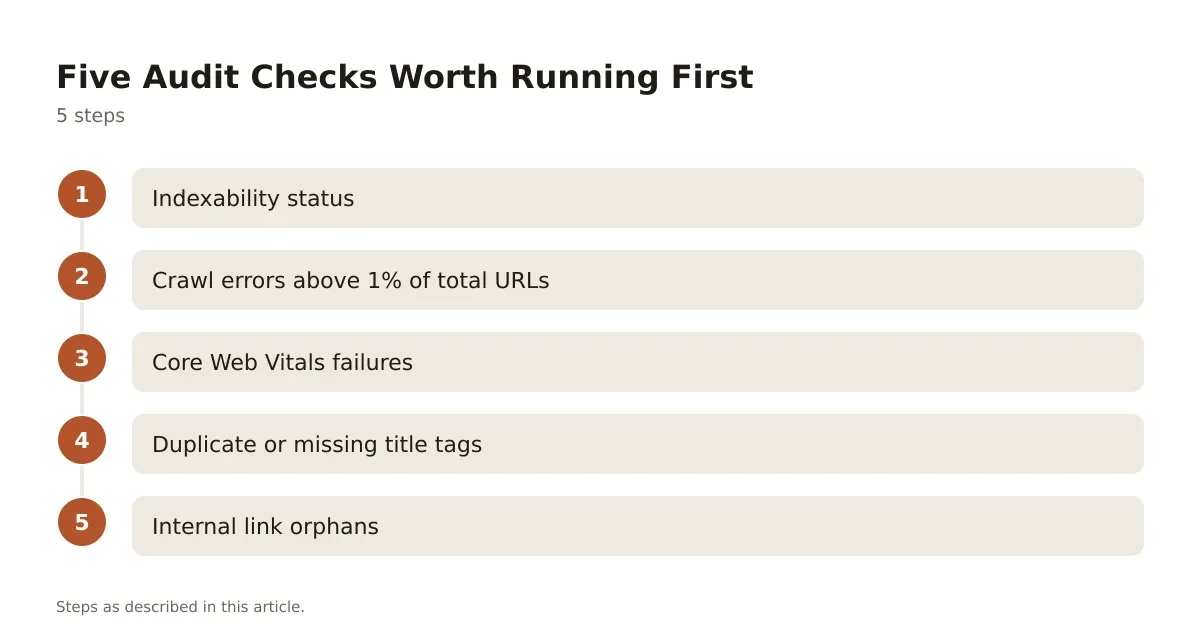
- Indexability status – Confirm pages you want ranked aren’t blocked by
noindex,robots.txt, or a broken canonical tag. - Crawl errors above 1% of total URLs – Fix 404s and server errors that are eating crawl budget on larger sites.
- Core Web Vitals failures – Prioritize LCP and INP issues on your highest-traffic landing pages first, not every page equally.
- Duplicate or missing title tags – These directly affect click-through rate from search results, even when rankings don’t move.
- Internal link orphans – Pages with zero internal links pointing to them rarely get crawled consistently, regardless of content quality.
Work through that list before touching anything cosmetic, like meta description length or image alt text wording. Those matter, but they won’t move the needle if Google can’t crawl or index the page in the first place.
Free vs Paid Audit Tools: What You Actually Lose
Free tools aren’t useless, but they come with real trade-offs you should know before relying on one for a client report.
Free versions, including the capped crawl limits on Screaming Frog’s free tier (500 URLs) or Google’s own Search Console, give you genuinely useful data. Search Console in particular is irreplaceable, since it’s the only source of truth for how Google itself sees your indexing status, not a third-party estimate. If you’re just getting started, our rundown of free SEO audit tools worth trying covers which ones punch above their limits.
What you lose with free tiers is scale and automation. A 500-URL crawl cap is fine for a small business site, useless for a 50,000-page ecommerce catalog. You also lose scheduled re-crawls, historical trend tracking, and the prioritized “fix this first” scoring that paid platforms build in. For a single-site owner doing occasional checkups, free tools are genuinely enough. For an agency managing a dozen client sites monthly, the manual work of stitching free-tool data together costs more in time than a paid subscription would in money.
Getting Real Value From Your Audit Reports
An audit tool is only as useful as what you do with its output. Running a crawl and letting the report sit in a downloads folder helps nobody.
The practitioners who get the most value treat the audit as a recurring process, not a one-time event. Re-run the crawl after every major site change, a redesign, a CMS migration, a bulk content update, and compare the new report against the last one. Most tools let you export historical crawl data specifically for this kind of before-and-after comparison.
Pair the tool’s findings with Search Console’s own Coverage and Core Web Vitals reports before making changes. The audit tool tells you what it found on its crawl; Search Console tells you what Google itself has actually indexed and ranked. When the two disagree, trust Search Console, since it reflects Google’s live data rather than a third-party crawler’s simulation.
Frequently asked questions
What is the difference between a free and paid seo site audit tool?
Free tools usually cap crawl volume, skip scheduled re-crawls, and offer less prioritization logic in their reports. Paid tools add larger crawl limits, historical tracking, and automated reporting, which matters more as site size and client count grow. For a single small site, a free tool is often genuinely sufficient.
How often should I run a full seo audit?
Run a full crawl after any major site change, like a redesign, CMS migration, or large content update, and otherwise on a monthly or quarterly schedule depending on site size. Larger, frequently updated sites benefit from more frequent audits since new pages and broken links accumulate faster. Smaller, mostly static sites can usually get away with quar



Leave a Reply