
Most site owners think Google core web vitals are a ranking shortcut. They’re not. They’re a tiebreaker, and a weak one at that, which is why obsessing over a perfect score while ignoring thin content is a waste of a sprint.
That said, ignoring them entirely is its own mistake. Poor scores correlate with real user problems, slow loads, jumpy layouts, laggy clicks, and those problems bleed into conversions even when rankings barely move. Here’s how to read the data correctly and fix what actually matters.
What Core Web Vitals Actually Measure
Three metrics make up the current set. Largest Contentful Paint (LCP) tracks how long the biggest visible element takes to render. Interaction to Next Paint (INP) measures responsiveness to clicks, taps, and keypresses. Cumulative Layout Shift (CLS) scores how much content jumps around while loading.
Google’s published thresholds, per Google Search Central, are: LCP under 2.5 seconds is good, up to 4 seconds needs improvement, beyond that is poor. INP under 200 milliseconds is good, up to 500ms needs improvement. CLS under 0.1 is good, up to 0.25 needs improvement. These thresholds apply at the 75th percentile of page loads, both mobile and desktop, not the average.
That percentile detail trips people up constantly. Your lab test in a clean browser can show a flawless 1.2-second LCP while your real field data sits at “needs improvement,” because one in four of your actual visitors on a throttled connection waits much longer. The field data is what Google uses for the ranking signal. The lab data is what you use to debug.
INP replaced First Input Delay (FID) as the responsiveness metric in March 2024, and it’s a stricter test. FID only measured the delay before the browser started processing a click. INP measures the entire interaction, including the time it takes to paint the next frame. Sites that passed comfortably under FID sometimes fail INP because of heavy JavaScript execution after the click registers.
Where to Check Your Scores First
Start in Google Search Console, not a speed-test tool. Field data from real Chrome users only shows up there and in the Chrome UX Report.
Open Search Console > Experience > Core Web Vitals. You’ll see two reports split by mobile and desktop, each bucketing your URLs into Good, Needs Improvement, and Poor. Click into a failing group and Search Console shows similar URLs affected by the same issue, which saves you from auditing every page individually. For a broader read on how this report ties into overall site health, our guide on using Google Search Console for SEO growth walks through the rest of that dashboard.
For a quick single-page gut check, run the URL through PageSpeed Insights. It shows both field data (if the page has enough traffic to qualify) and a lab test via Lighthouse. If a URL has no field data, PageSpeed only shows lab results, which won’t match what Search Console eventually reports. Don’t panic over a lab-only red score until you see the field numbers.
Chrome DevTools gives you the deepest diagnostic view. Open DevTools, go to the Performance tab, record a page load, and look for long tasks over 50 milliseconds, those are what tank INP.
Fixing Largest Contentful Paint Problems
Large, unoptimized images are the most common LCP killer. A 2MB hero image can add several seconds to mobile load time on a mid-range phone.
The fix usually comes in layers. First, compress and convert the hero image to WebP or AVIF:
cwebp -q 80 hero.jpg -o hero.webpThis command converts a JPEG to WebP at 80% quality, typically cutting file size by half or more with no visible loss.
Second, mark the LCP element with a high fetch priority hint so the browser downloads it before other resources compete for bandwidth:
<img src="hero.webp" fetchpriority="high" alt="Product hero image">The fetchpriority="high" attribute tells the browser to treat this image as urgent, ahead of below-the-fold assets.
Third, check your server response time. If Time to First Byte (TTFB), the time between the browser requesting the page and receiving the first byte back, runs past 600ms, no amount of image optimization will save your LCP. A Content Delivery Network (CDN) like Cloudflare caches static assets closer to the visitor and usually shaves meaningful time off TTFB for geographically spread audiences.
Note: render-blocking CSS (Cascading Style Sheets) and web fonts are the other common LCP culprit. If your LCP element is text, a custom font that blocks rendering until it downloads will delay paint. Use
font-display: swapto show fallback text immediately.
Fixing Interaction to Next Paint Issues
Heavy JavaScript is almost always the cause here. A single bloated script that blocks the main thread makes every click feel sluggish, even on fast connections.
Break long tasks into smaller chunks. If you control the code, wrap expensive operations so the browser can breathe between them:
function processInChunks(items, callback) {
 let i = 0;
 function step() {
 const end = Math.min(i + 50, items.length);
 for (; i < end; i++) callback(items[i]);
 if (i < items.length) requestIdleCallback(step);
 }
 requestIdleCallback(step);
}
This splits a large loop into batches, giving the browser a chance to respond to user input between batches instead of freezing until the whole loop finishes.
On WordPress sites, third-party scripts are the usual suspect, chat widgets, heatmap trackers, ad networks, and marketing pixels stacked on top of each other. Audit your <head> and footer scripts and delay non-critical ones using the defer or async attributes, or load them only after user interaction (scroll, click, or a few seconds of idle time). Plugins like Flying Scripts or WP Rocket’s delayed JavaScript execution handle this without touching code directly.
Fixing Cumulative Layout Shift Problems
Images and ads without reserved space cause most layout shift. The browser doesn’t know how tall an image will be until it loads, so it pushes content down after the fact, and that jump is exactly what CLS penalizes.
Always set explicit width and height attributes, or use a CSS aspect-ratio box:
img {
 aspect-ratio: 16 / 9;
 width: 100%;
 height: auto;
}
This reserves the correct space before the image downloads, so nothing shifts once it appears.
Web fonts cause a subtler version of the same problem. When a custom font swaps in after a fallback font has already rendered, text can reflow if the character widths differ. Use font-display: optional for less critical type, or preload the font file so it’s ready sooner:
<link rel="preload" href="/fonts/main.woff2" as="font" type="font/woff2" crossorigin>This tells the browser to fetch the font early, in parallel with other critical resources, instead of discovering it late in the CSS.
Dynamically injected content, cookie banners, embedded ads, “Sign up now” bars, is the other repeat offender. Reserve a fixed-height container for these elements before they load rather than letting them shove the page down.
WordPress-Specific Fixes That Actually Move the Needle
WordPress sites fail Core Web Vitals for a predictable set of reasons, and most come from plugin stacking rather than the core software itself.
Start with the theme. Page builders like Elementor and Divi generate heavier HTML and CSS than hand-coded themes, which inflates both LCP and INP on underpowered hosting. You don’t need to abandon your builder, but you do need caching and a CDN to compensate.
⚠️ Warning: Before changing caching settings or installing a new optimization plugin, back up the site. Aggressive CSS/JS minification settings occasionally break theme layouts or checkout flows, and you want a fast rollback path.
A few concrete moves that consistently help WordPress sites:
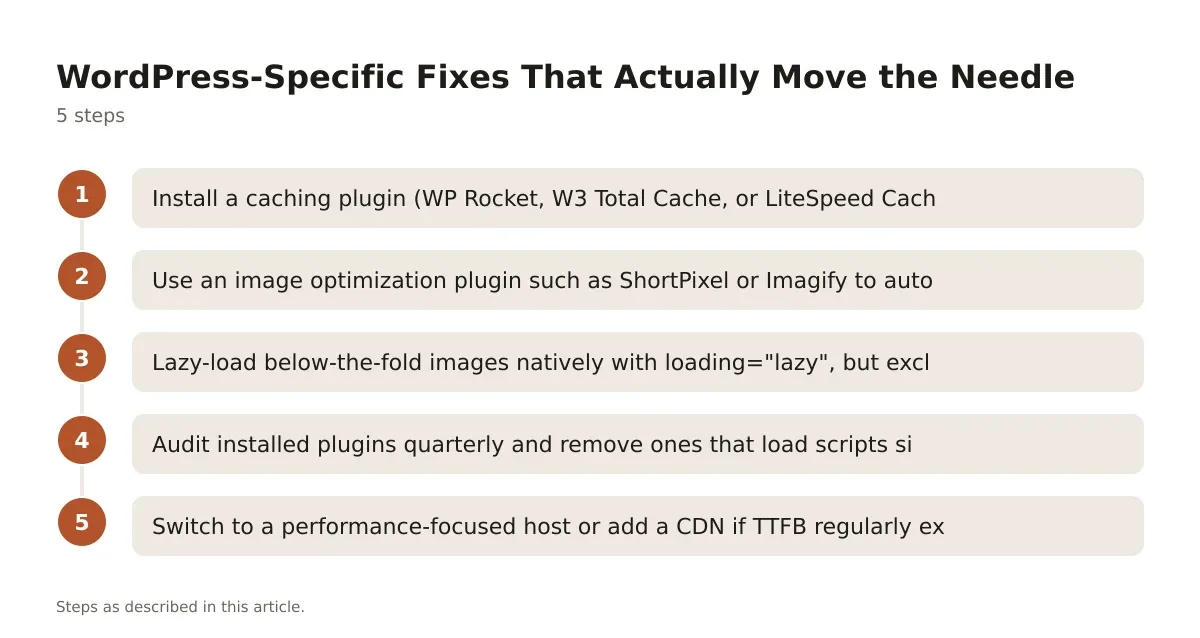
- Install a caching plugin (WP Rocket, W3 Total Cache, or LiteSpeed Cache if your host supports it) and enable page caching plus GZIP or Brotli compression.
- Use an image optimization plugin such as ShortPixel or Imagify to auto-convert uploads to WebP and strip unnecessary metadata.
- Lazy-load below-the-fold images natively with
loading="lazy", but exclude the LCP image from lazy loading since it needs to load immediately. - Audit installed plugins quarterly and remove ones that load scripts site-wide but are only used on one page.
- Switch to a performance-focused host or add a CDN if TTFB regularly exceeds 600ms on PageSpeed Insights.
Each of these is low-risk individually. Stacking all five on a site that’s never been optimized is usually what pushes Core Web Vitals from “Poor” to “Good” within a few weeks of Google recollecting field data.
Common Mistakes That Waste Optimization Time
Chasing a perfect Lighthouse score of 100 is the biggest time sink I see. Lighthouse lab scores are synthetic and don’t reflect the field data Google actually uses for ranking, so squeezing the last few points often means diminishing returns for real users.
Another frequent mistake: fixing CLS by removing ads or dynamic content entirely instead of reserving space for them. That solves the metric but kills revenue, which isn’t a fix, it’s a trade you didn’t need to make.
Site owners also tend to optimize homepage performance obsessively while ignoring the pages that actually drive traffic and conversions. Check Search Console’s Core Web Vitals report by URL group, not just your homepage score, since Google evaluates performance per page template, not per domain.
Last mistake worth naming: treating one Lighthouse run as gospel. Network conditions and device load vary run to run. Run PageSpeed Insights three or four times before deciding whether a fix worked, and prioritize field data over any single lab result.
How Core Web Vitals Fit Into Your Broader SEO Priorities
Core Web Vitals are part of Google’s page experience signals, but they sit well behind content relevance and quality in the ranking stack. A technically perfect page with thin or unhelpful content will not outrank a slower page that answers the query better.
That doesn’t mean deprioritize speed. Slow, shifting pages hurt conversion rate, bounce rate, and user trust regardless of what Google rewards algorithmically. If you’re running a full technical review, Core Web Vitals should be one checkpoint among many, alongside crawlability, indexing, and structured data. Our full walkthrough on how to do an SEO audit covers where vitals fit into that larger process.
Treat vitals as table stakes rather than a growth lever. Fix the “Poor” buckets because they genuinely hurt users, not because you expect a ranking jump the week after.
Tools Worth Using for Ongoing Monitoring
You don’t need five tools running simultaneously. Pick two or three that cover field data, lab data, and real-time monitoring, and check them on a schedule rather than reactively.
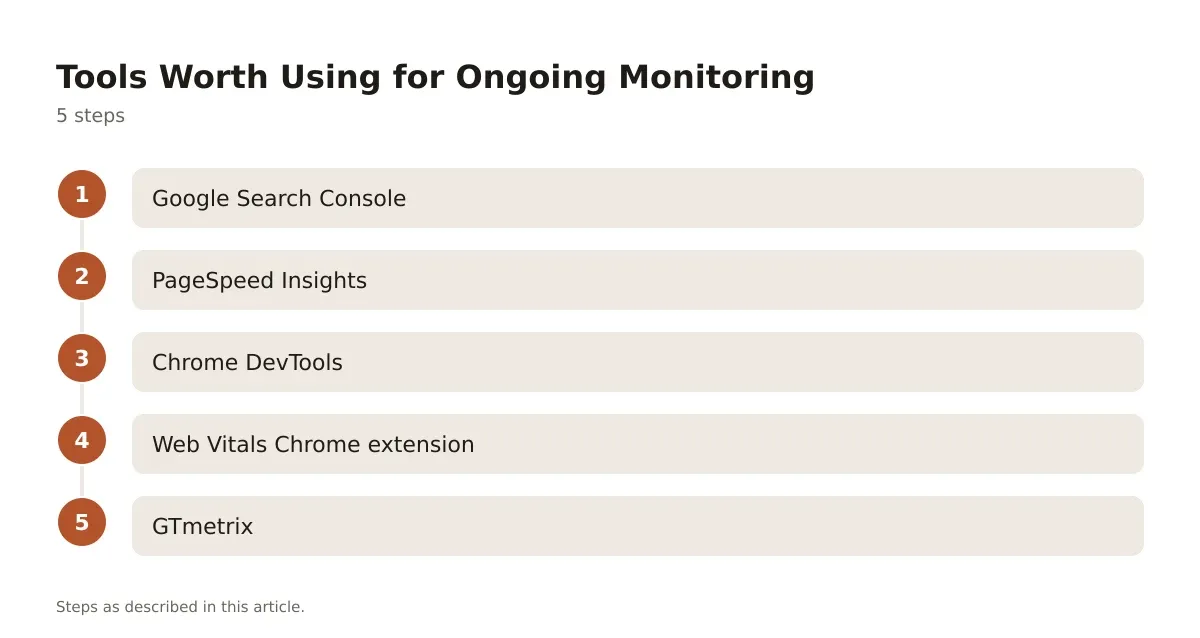
- Google Search Console – free, shows real Chrome user field data grouped by URL pattern, updated roughly every 28 days.
- PageSpeed Insights – free, combines field data (when available) with a Lighthouse lab audit for any public URL.
- Chrome DevTools – free, built into Chrome, best for diagnosing exactly which script or resource is causing a specific delay.
- Web Vitals Chrome extension – free, shows live LCP, INP, and CLS scores as you browse your own site, useful for catching shifts in real time.
- GTmetrix – free tier plus paid plans, useful for scheduled monitoring and historical trend graphs across multiple pages.
Search Console remains the source of truth for the ranking-relevant field data. Everything else is for diagnosis and before/after comparison when you’re testing a fix.
Bringing Core Web Vitals Into Your Regular Workflow
Core Web Vitals aren’t a one-time fix. Hosting changes, new plugins, redesigns, and added third-party scripts can all quietly regress scores months after you thought the job was done. Build a quarterly check into your maintenance routine: pull the Search Console report, spot-check your top-traffic templates in PageSpeed Insights, and compare against your last baseline.
The sites that stay in the “Good” bucket long-term are rarely the ones that chased a perfect score once. They’re the ones that caught a slow plugin update or a bloated new hero banner within a month, not a year. If you want the bigger picture on how these metrics tie into actual ranking movement over time, our deeper look at the impact of Core Web Vitals breaks down what changed and what didn’t.
Speed and stability won’t rescue weak content, but they will stop a good page from underperforming for reasons that have nothing to do with what you wrote. Fix the Poor buckets, monitor quarterly, and move on to the parts of SEO that actually move rankings.
Frequently asked questions
What are Google’s Core Web Vitals thresholds?
LCP should be under 2.5 seconds, INP under 200 milliseconds, and CLS under 0.1, all measured at the 75th percentile of real user visits according to Google Search Central. Scores between those numbers and the next tier count as “needs improvement,” and anything beyond that is “poor.”
Do Core Web Vitals directly affect my rankings?
They’re one of many page experience signals Google uses, and a minor one compared to content relevance and quality. Poor scores can hold a page back slightly when competing against similarly relevant content, but strong vitals alone won’t outrank thin or unhelpful pages.
Why does my PageSpeed Insights score differ from Search Console?
PageSpeed Insights often shows lab data from a single simulated test, while Search Console reports real field data collected from actual Chrome users over a 28-day window. A page can score poorly in a lab test but pass in the field, or the reverse, depending on real-world network and device conditions.
Can a WordPress plugin fix Core Web Vitals automatically?
Caching and image optimization plugins handle a meaningful chunk of the work, but no plugin fixes everything. Bloated themes, unnecessary third-party scripts, and slow hosting usually need manual review and removal, not just a plugin toggle.



Leave a Reply